Internet keeps cutting out? How to fix Wi-Fi that keeps disconnecting (2026 guide)
The Net Fix · Updated · 19 min read
The short answer
When your internet keeps cutting out, first see what drops. If the Wi-Fi icon disappears, it's your Wi-Fi: distance, a busy or radar-shared channel, old firmware or power saving. If Wi-Fi stays connected but nothing loads, the modem or line dropped: check its lights, cables and signal levels. If only one device drops, fix that device. Check Is it down?, restart the modem and then the router, and if it keeps happening, note the time of every drop so you can see the pattern and show it to your provider.
Internet keeps cutting out? Do this first (5 minutes)
Intermittent internet is the most frustrating problem there is: it works when the technician is there and drops again the moment they leave. These steps fix a large share of drop-outs and, just as important, tell you where to look next.
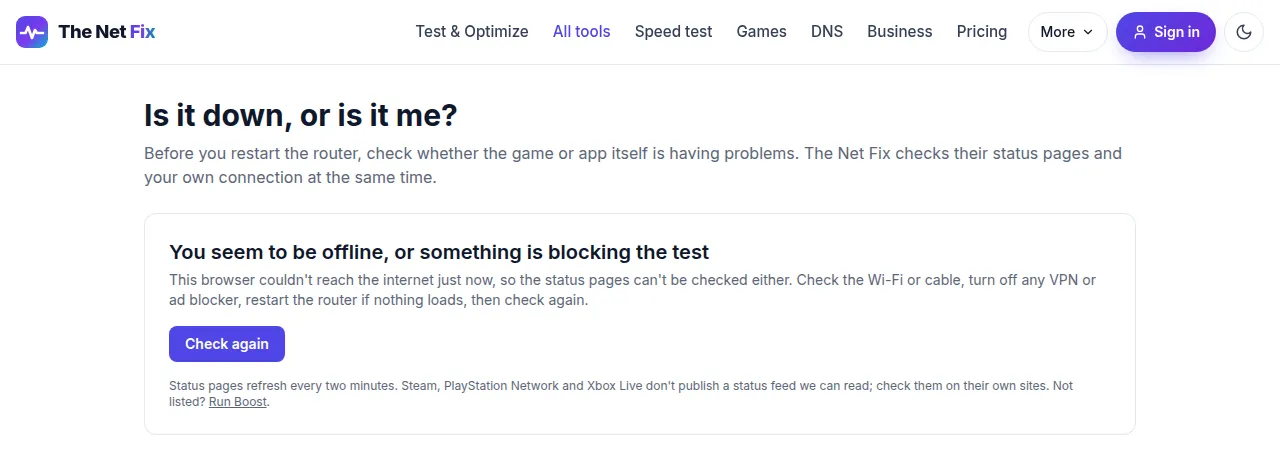
- Check whether the service itself is down, not your connection: Is it down? reads the status pages of popular apps and checks your connection at the same time.
- Restart in the right order: unplug the modem and router, wait 30 seconds, plug in the modem first, wait until its online light is steady (two to five minutes), then the router. With a single provider gateway, just unplug it for 30 seconds.
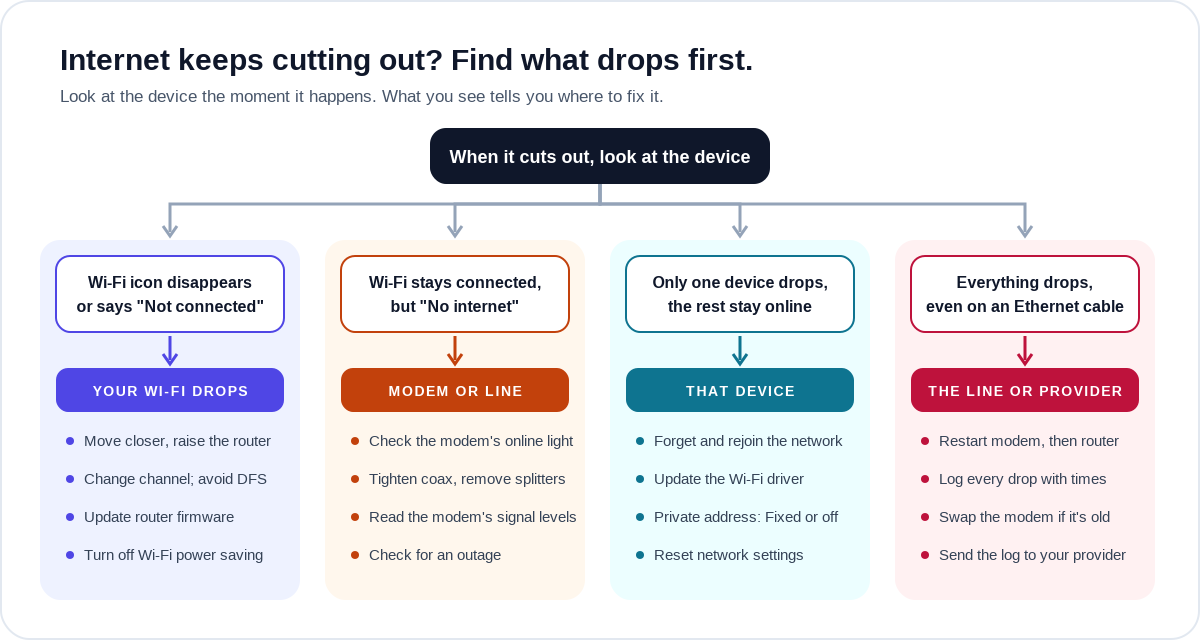
- Next time it drops, look at the device before you touch anything. Is the Wi-Fi icon gone, or still there with "No internet"? Is it one device, or all of them? That one look tells you which section of this guide you need.
- Push every cable in until it clicks: power, Ethernet and the coax, fiber or phone line at the wall. A coax connector should be finger-tight.
- Write down the time of each drop for a day or two. The pattern is often the answer (see when it drops).
- Run Test & Optimize while it's working. It checks speed, lag, packet loss, Wi-Fi, DNS and more in about two minutes and says whether a weak spot is in your home, on your line or beyond.
Step 1: work out what's actually dropping
"My internet keeps disconnecting" can mean four different failures, and each has a different fix. Spend thirty seconds on this and you'll skip hours of trying the wrong things.
| What you see | What dropped | Start here |
|---|---|---|
| Wi-Fi icon disappears or says "Not connected" | The Wi-Fi link | Wi-Fi keeps disconnecting (below) |
| Wi-Fi icon stays, but "No internet" or nothing loads | The router's link to the internet | Connected but no internet |
| Only one phone, laptop or console drops | That device | Fixes by device |
| Every device drops at once, even on Ethernet | The modem or line | Modem keeps resetting |
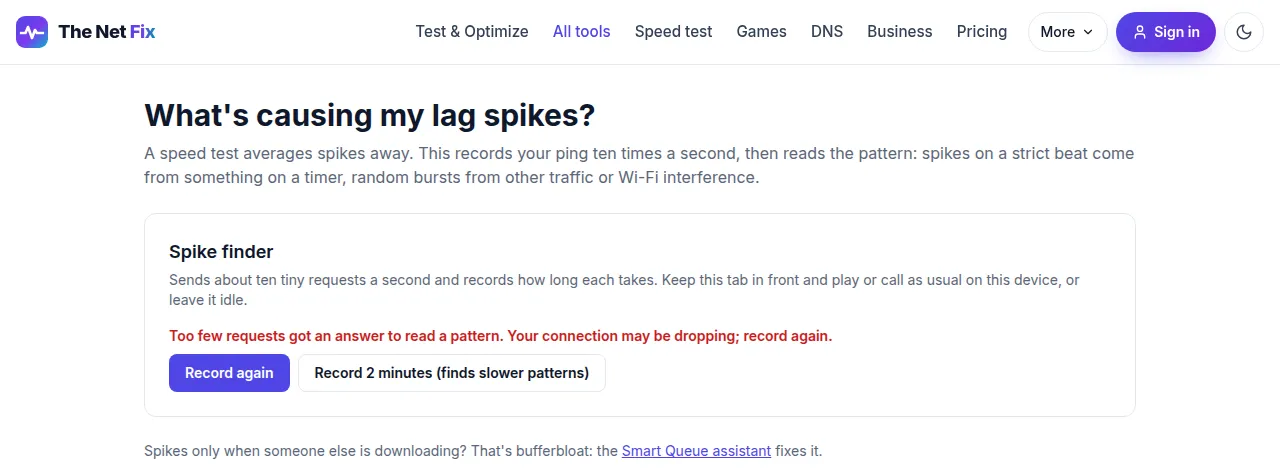
| Games or calls freeze for seconds but pages load | Packet loss or lag spikes | Lag spike finder |
| Only one app or game is down | That service | Is it down? |
The last two rows aren't really drop-outs, but they feel like it. A game that says "disconnected from server" while Netflix plays fine is either the game's servers (check Is it down?) or packet loss on your connection (check the lag spike finder). Freezing Zoom, Teams or FaceTime calls have their own guide.
Step 2: notice when it drops
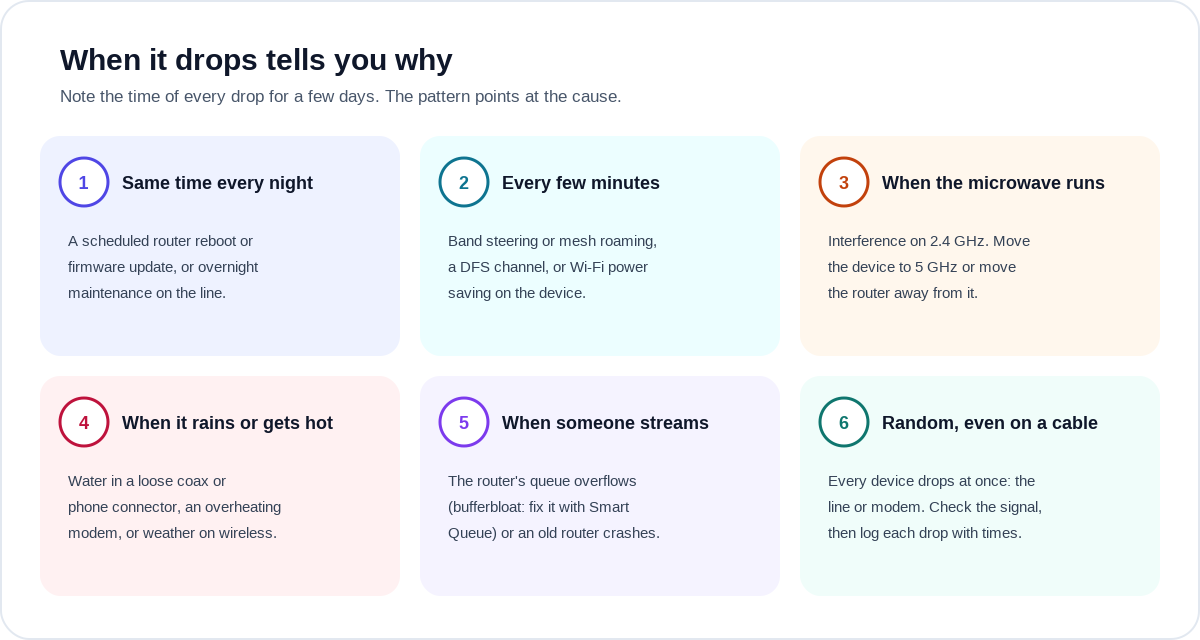
The time of each drop is the best clue you have. Random drops on every device point at the line; drops that line up with something (a time of night, the microwave, rain, someone gaming) point at that thing.
Internet cuts out at the same time every night
A drop at 11:45 pm almost every night is not bad luck. Check the router's settings for a scheduled reboot, a Wi-Fi schedule or automatic firmware updates (many routers install them overnight and restart). Mesh systems sometimes optimise channels at night. If none of those is set, providers often do line maintenance between midnight and 6 am, and a modem that reboots at the same time each night may be getting a configuration update from the provider. That's worth asking about if the drops are long.
You don't have to stay up to catch it: most routers and modems keep a system or event log with the time of each disconnect. If the drops cluster around the same minute every night, say 11:40 pm, that points straight at a scheduled router restart.
Internet drops every few minutes
Short drops every few minutes are nearly always Wi-Fi. The usual causes are a device hopping between the 2.4 and 5 GHz bands or between mesh points (band steering), a 5 GHz DFS channel the router has to leave when it detects radar, Wi-Fi power saving on a laptop or phone, or a signal right at the edge of range. The fixes are in the next section. If it happens on a cable too, go straight to the modem section.
Internet cuts out when someone streams, games or uploads
If the connection "drops" only while someone else is busy, it usually isn't dropping: everything waits behind one big transfer in the router's queue, so pages and calls time out. That's bufferbloat, and it's fixable at home with Smart Queue (SQM). The speed test grades lag under load, and the Smart Queue assistant gives you the exact settings. An old router that freezes completely and restarts under heavy load is the other cause; a new router fixes that.
Wi-Fi keeps disconnecting: 10 fixes
If the Wi-Fi icon disappears or your device keeps reconnecting, the link between the device and the router is breaking. These fixes are in order of how often they solve it.
- Move the router out into the open: high up, central, not inside a cabinet, behind the TV or on the floor. Walls, mirrors, fish tanks and appliances all eat signal. The Wi-Fi room check shows which rooms are at the edge of range.
- Update the router's firmware. Drop-outs are one of the most common bugs fixed in router updates, and many routers only update when you ask them to.
- Change the 2.4 GHz channel to 1, 6 or 11 with 20 MHz width. In apartments, every neighbour's router competes for the same air, and an auto channel isn't always the quiet one.
- If it drops every few minutes on 5 GHz, avoid DFS channels (52 to 144). Routers must leave those channels when they detect radar, which disconnects everyone for up to a minute. Channels 36 to 48 or 149 to 165 don't have that rule.
- Try splitting the bands. If your router shows one network name, older phones and laptops may keep jumping between 2.4 and 5 GHz. Give the 5 GHz band its own name and join that one near the router; keep 2.4 GHz for far rooms and smart home gadgets.
- Check the security mode. Some older devices can't hold a WPA3-only connection; use "WPA2/WPA3" (transition) mode, and never WEP or WPA.
- Turn off power saving for Wi-Fi on the device (steps for each device are below). Laptops and phones that put the Wi-Fi adapter to sleep often drop and reconnect.
- Replace cheap plug-in extenders with mesh or a wired access point. Extenders often lose the router's signal themselves and take every device with them.
- Keep the router cool and on a good power socket. An overheating router reboots or drops Wi-Fi; feel it, and give it space.
- If the router is more than five or six years old, or struggles with the number of devices you have now, replace it. The router guides cover popular models.
Wi-Fi connected but no internet? Here's why
"Connected, no internet" on Android, "No internet, secured" on Windows 11, or a Wi-Fi icon with nothing loading on an iPhone all mean the same thing: your device reached the router, but the router can't reach the internet, or your device didn't get working settings from it. Work through it in this order.
- Check another device. If everything has no internet, it's the router, modem or line: restart them in order and look at the modem lights (below). If only one device is stuck, keep going.
- Forget the network on that device and join it again with the password. This clears a bad saved setting.
- Renew the address. On Windows, open Command Prompt and run ipconfig /release, then ipconfig /renew. On a Mac, open System Settings, Wi-Fi, Details, TCP/IP, then Renew DHCP Lease. On a phone, turning Wi-Fi off and on does the same.
- Turn off any VPN, proxy or "secure browsing" app, then test again. A VPN that loses its server leaves you connected with no internet.
- If apps like WhatsApp work but websites won't load, it's DNS, the system that turns names into addresses. Switch to a reliable resolver with the DNS guide.
- On public or hotel Wi-Fi, open any http website to bring up the sign-in page (the captive portal).
- Still stuck on one device? Reset its network settings; the network reset guide has copy-paste commands for Windows, macOS and Linux. On an iPhone or Android phone, use the reset steps in the next section.
Fixes by device: iPhone, Android, Windows 11, Mac, PS5, Xbox, TV
If only one device keeps disconnecting from Wi-Fi, the router is probably fine. Run the device check on it to rule out a slow device, then use the steps for that device.
iPhone or iPad keeps disconnecting from Wi-Fi
- Forget and rejoin: Settings, Wi-Fi, tap the (i) next to your network, Forget This Network, then join again.
- On the same screen, set Private Wi-Fi Address to Fixed or Off for your home network. A rotating address can make some routers treat your phone as a new device and drop it.
- Turn off Low Data Mode on that screen, and check that no VPN or content-blocker profile is installed.
- Wi-Fi Assist (Settings, Cellular) switches to cellular when Wi-Fi is weak. It can make it look as if Wi-Fi dropped; it's a sign the signal is weak where you are.
- Last resort: Settings, General, Transfer or Reset iPhone, Reset, Reset Network Settings. It erases saved Wi-Fi passwords.
Android or Samsung phone keeps disconnecting from Wi-Fi
- Forget and rejoin the network, then open its settings and, under Privacy, try "Use device MAC" for your home network.
- Turn off Adaptive Connectivity (Pixel) or Switch to mobile data under Intelligent Wi-Fi (Samsung, in Connections, Wi-Fi, the three-dot menu) if the phone keeps leaving Wi-Fi for mobile data.
- Turn off battery saver while you test; aggressive power saving can sleep the Wi-Fi radio.
- Last resort: Settings, System, Reset options, Reset Wi-Fi, mobile and Bluetooth.
Laptop keeps disconnecting from Wi-Fi on Windows 11
- Stop Windows putting the Wi-Fi adapter to sleep: Device Manager, Network adapters, your Wi-Fi adapter, Properties, Power Management, untick "Allow the computer to turn off this device to save power". Also set the power plan's wireless adapter setting to Maximum Performance.
- Update the Wi-Fi driver from your laptop maker's or Intel's, Realtek's or MediaTek's site. Windows Update drivers are often older.
- In Settings, Network & internet, Wi-Fi, turn off Random hardware addresses for your home network.
- Reset networking: Settings, Network & internet, Advanced network settings, Network reset. Or run netsh winsock reset and ipconfig /flushdns in an admin Command Prompt, then restart.
- If it's still flaky, check that the laptop is on 5 GHz and close to the router. The Windows 11 slow internet FAQ covers the rest.
Mac keeps disconnecting from Wi-Fi
- Forget the network in System Settings, Wi-Fi, then rejoin. In the network's Details, set Private Wi-Fi address to Fixed or Off at home.
- Hold Option and click the Wi-Fi icon in the menu bar, then Open Wireless Diagnostics. It can monitor the connection and logs each drop.
- Short lag spikes every second or so on a Mac are often AirDrop and Handoff scanning in the background, not a real drop; the lag spike finder spots that pattern.
PS5, Xbox or Switch keeps disconnecting from the internet
- Use Ethernet if you possibly can; consoles often sit behind a TV, which is a bad place for Wi-Fi. Run the console's own network test (PS5: Settings, Network, Connection Status; Xbox: Settings, General, Network settings, Test network connection).
- "Disconnected from server" in one game, while everything else works, is usually the game. Check Is it down? and the per-game guides.
- Party chat dropping or "NAT type strict": check with the connection check and the port checker, and see how to change NAT from Strict to Open.
- Lag spikes rather than drops? See how to fix lag on PS5 or Xbox.
Smart TV, Roku or Fire TV keeps disconnecting from Wi-Fi
- TVs hang on the wall behind a metal frame, often far from the router: about the worst spot for Wi-Fi. Use Ethernet if the TV or streaming box has a port, or move the router or a mesh point closer.
- Update the TV's software and turn off power-saving or "eco" network settings that sleep the Wi-Fi.
- If shows buffer rather than disconnect, run the streaming check on a device in the same room.
Ethernet keeps disconnecting
A wired connection should never drop. When it does, it's almost always the cable, the port or a power-saving setting:
- Swap the cable for a known-good Cat 5e or Cat 6 one. A broken latch, a kinked or pinched cable (under a door, behind furniture) or an old flat cable causes exactly this.
- Try a different port on the router, and skip any cheap switch or wall jack in between to see if the problem goes away.
- On Windows, in the adapter's Properties, Advanced tab, set Energy Efficient Ethernet (or Green Ethernet) to Disabled, and untick the power-saving option on the Power Management tab.
- If the link drops to 100 Mbps or flaps between speeds, the cable or port is bad. If wired drops happen on every device at once, it's the router or modem, not the cable.
Modem keeps resetting or losing connection
If every device drops at once, wired ones included, the problem is upstream of your Wi-Fi: the modem, the cable into your home, or the provider's network. Watch the modem's lights during a drop. They tell you which.
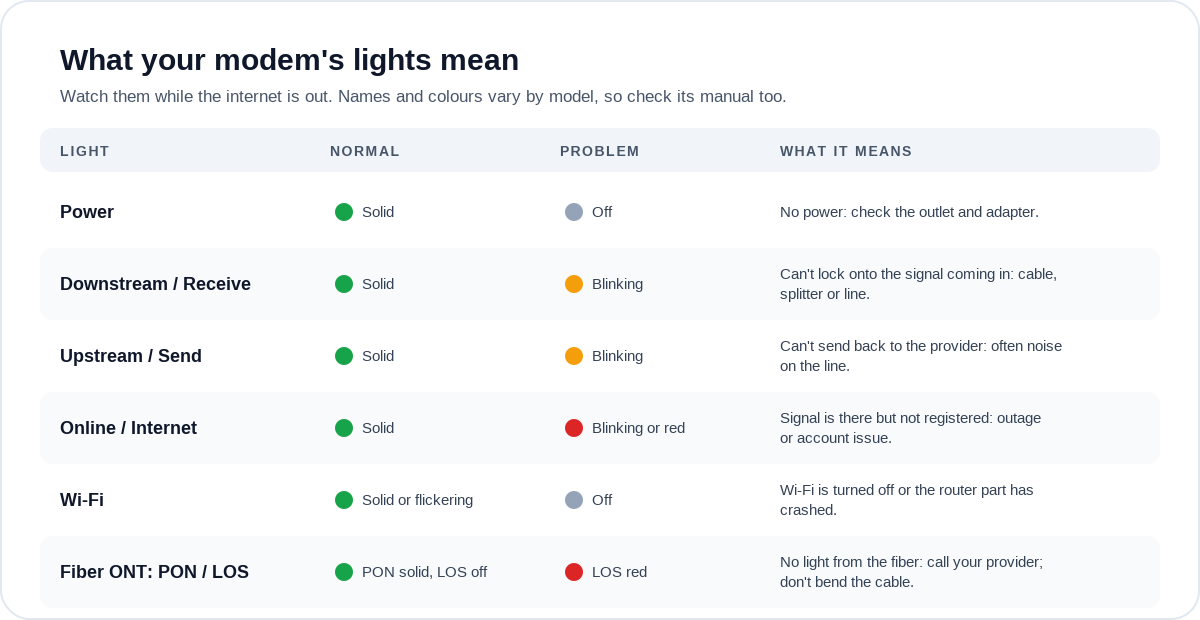
- Check the coax from the wall to the modem: finger-tight at both ends, no kinks, no corroded connectors. Remove every splitter that doesn't feed something you use; each one weakens the signal.
- Plug the modem straight into a wall socket or a good surge protector, not a loose power strip, and make sure it isn't stacked on the router or in a closed cabinet. Modems that overheat reset.
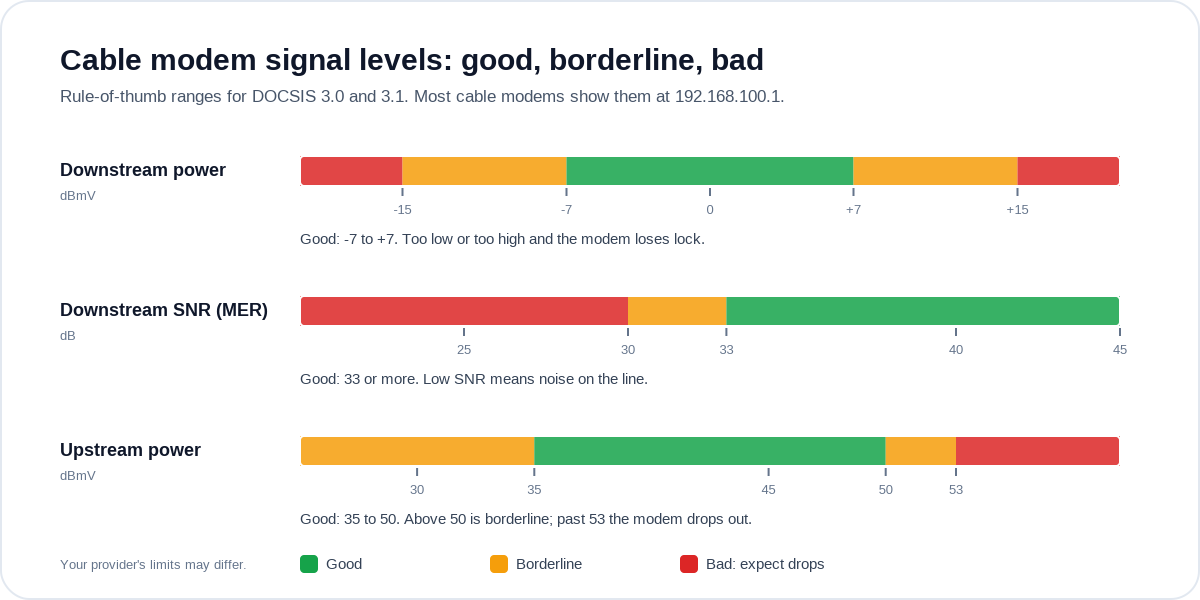
- Read the modem's signal levels and event log. On most cable modems (Arris, Motorola, Netgear) they're at 192.168.100.1; on a provider gateway, look in its app or admin page. Lots of "T3 timeout" or "T4 timeout" and "lost sync" entries in the log mean the upstream signal isn't getting through: a line problem for your provider.
- If the modem is more than five to seven years old, or is a DOCSIS 3.0 model on a fast plan, replace it, from your provider's approved list if you buy your own. A rented gateway can be swapped for free; ask.
Fiber and DSL have their own tells. On fiber, a red LOS light on the ONT (the box where the fiber comes in) means no light is arriving: check that the thin fiber cable isn't bent tightly, then call your provider. On DSL, every phone in the home needs a filter, and a crackly phone line means a wiring fault that will also drop the internet.
Is it my router or my line? Test both during a drop
The hardest question with drop-outs is whether the router or the line failed, because by the time you look, everything works again. Leave two pings running on a computer plugged into the router: one to the router itself (usually 192.168.1.1 or 192.168.0.1) and one to the internet (for example 1.1.1.1). On Windows add -t to keep them going; on a Mac or Linux they run until you stop them.
If both stop answering together, the problem is in your home: the router, its power, or the computer's own connection. If the router keeps answering while the internet goes, the line or the modem dropped. If the internet ping only climbs when someone downloads, that's a queue, fixable at home with the Smart Queue assistant.
By connection: cable, fiber, DSL, 5G home internet and Starlink
- Cable (Xfinity, Spectrum, Cox, Optimum): most whole-home drops come from coax: loose or corroded connectors, too many splitters, or damage on the line outside. Signal levels and the modem log tell you which. See the modem section.
- Fiber (AT&T Fiber, Verizon Fios, Google Fiber, Frontier): drops are rare on the line itself. Look at the ONT's lights, the power to the ONT and router, and the router. A red LOS light is the provider's job.
- DSL: drops often follow phone line noise. Filter every phone, avoid long extension cables, and ask for a line test if the sync light keeps blinking.
- 5G home internet (T-Mobile, Verizon, AT&T Internet Air): the gateway needs a strong cell signal. Move it to a window on an upper floor facing the nearest tower, use its app's signal reading, and expect busy evenings at a crowded tower. See is 5G home internet good for gaming?.
- Starlink: short drops come from obstructions as the satellites move. Run the obstruction check in the Starlink app, mount the dish higher with a clear view of the sky, and check the app's outage list. The Starlink guide and why Starlink has lag spikes cover the rest.
Internet goes out when it rains, or when it's hot
Weather-linked drops are real, and they point outside. Water getting into a loose or cracked coax connector, a damaged cable on the side of the house, or a corroded phone line junction all show up as drops when it rains. Heat does it too: a modem or router in a hot attic or closet overheats, and outdoor equipment can misbehave on the hottest days. Satellite and 5G home internet can also fade in very heavy rain or snow. If the drops follow the weather and every device goes at once, note the dates and ask your provider to check the line from the pole or pedestal to your home.
Xfinity, Spectrum, AT&T, Verizon: when to call your provider
Call your provider when the problem is clearly on their side: every device drops at once, wired ones too; the modem's downstream, upstream or online light blinks during drops; the signal levels are out of range or the log is full of timeouts; or the drops continue after you've restarted, tightened the cables and removed splitters. Check their outage map or app first (the Xfinity app, the My Spectrum app, myAT&T, My Verizon), and use Is it down? for the apps you use.
What gets results is specifics: "The internet dropped 14 times in the last 7 days, all devices, wired too, mostly in the evening; here are the times and my upstream power is 53 dBmV." That's hard to argue with and gets a technician sent out, where "my internet keeps cutting out" gets you a remote reboot. Many providers will also credit your bill for long outages if you ask. How do I prove to my ISP that my internet is bad? has more, and providers compared shows how providers in your city do in the evening.
How to prove intermittent internet to your provider
- Test from a device plugged into the router with a cable, so Wi-Fi isn't part of the measurement.
- Write down the date, time and length of every drop for at least a week, through evenings and weekends. The modem's event log often has them too.
- Run the speed test at the same few times each day; your results are kept in this browser, and each has a share link.
- Attach the drop list, the test results and the modem's signal levels to your support ticket.
A week of dated drops and wired tests shows whether the problem is in your home, on your line or beyond. That way you fix the right thing or hand your provider real evidence.
How The Net Fix helps when your internet keeps dropping
The Net Fix (thenetfix.com) is a set of free browser tools that find where a connection problem starts and walk you through the fix. For drop-outs, the useful ones are Is it down? to rule out the service, the lag spike finder to catch packet loss and short drops, the Wi-Fi room check to find weak rooms, and Test & Optimize, which runs every check in about two minutes. No app can make your plan faster than what you pay for, and we don't claim to; the goal is to find and fix what breaks your connection. The docs explain every tool, and the FAQ answers the common questions.
The "internet keeps cutting out" checklist
- Check Is it down?, then restart the modem first and the router second.
- Next drop: is the Wi-Fi icon gone (Wi-Fi), still there with no internet (router or line), on one device (that device), or on everything (modem or line)?
- Note the times of the drops and match the pattern: nightly, every few minutes, microwave, rain, or when someone's busy.
- Wi-Fi drops: move the router, update its firmware, pick a non-DFS channel, split the bands, turn off device power saving. Use the Wi-Fi fix guide.
- Connected but no internet: forget and rejoin, renew the address, turn off the VPN, and try other DNS.
- Whole-home drops: check the modem lights, coax and splitters, and read the signal levels and log.
- Drops when someone's busy: turn on Smart Queue with the Smart Queue assistant.
- Still dropping: keep a week of drop times and wired test results and send them to your provider.
See where your connection is weak right now: one press checks speed, lag, packet loss, Wi-Fi and DNS, and tells you whether the problem is in your home, on your line or beyond.
Run Test & Optimize (free)Questions
Why does my internet keep cutting out every few minutes?
Short, regular drops are usually Wi-Fi: band steering between 2.4 and 5 GHz, a DFS channel the router must leave when it detects radar, power saving on the device, or a weak signal. Pick a non-DFS 5 GHz channel, update the router firmware and turn off Wi-Fi power saving. If it also happens on a cable, check the modem; the lag spike finder confirms the drops.
Why does my internet go out at night?
Drops at the same time each night usually come from a scheduled router reboot, automatic firmware updates or overnight line maintenance. Check the router's schedules first; its system log shows each drop's time, so you can see the pattern without staying up.
Can a bad router make the internet keep dropping?
Yes. Old or overheating routers drop Wi-Fi, freeze under load and restart on their own. If a laptop plugged straight into the modem stays connected while Wi-Fi drops, the router is the problem. The router guides cover popular models.
Is it my modem or my router that keeps disconnecting?
Watch the lights during a drop. Blinking downstream, upstream or online lights on the modem mean the modem lost the line; solid modem lights with no internet point at the router. Pinging the router and the internet at the same time (see router or line) tells you which one dropped.
Why does my Wi-Fi drop when I use the microwave?
Microwave ovens leak a little energy at 2.4 GHz, the same band as older Wi-Fi. Move the device to the 5 GHz network or move the router away from the kitchen; the Wi-Fi fix guide covers bands and placement.
How do I check if my internet is dropping packets?
Run the lag spike finder: it sends ten requests a second and reports how many were lost. Any loss above about 1% causes freezes in games and calls. How do I fix packet loss? covers the causes.
My internet doesn't drop, but games stutter and calls go choppy. Is that the same problem?
Not quite. If the connection stays up but packets arrive unevenly, that is jitter, and it usually comes from Wi-Fi or a busy line rather than a dropping modem. What is jitter? explains what a good number is and how to find where it starts.
Does The Net Fix work if my internet keeps dropping?
Yes. Test & Optimize runs while your connection is up and shows weak spots such as packet loss, Wi-Fi and lag, and Is it down? tells you when this browser is offline.
Keep reading
- Does restarting your router lower ping?
- Why is my internet so slow? 10 causes
- Internet slow at night? 12 fixes
- High ping but fast internet? 7 causes
- What is jitter, and how to fix it
- Fix slow or unstable Wi-Fi
- Reset your network settings
- Lag spike finder
- Calls freezing at home?
- The Net Fix docs and help center
- All questions answered