Why is my internet so slow? How to fix slow, laggy Wi-Fi at home (2026 guide)
The Net Fix · Updated · 22 min read
The short answer
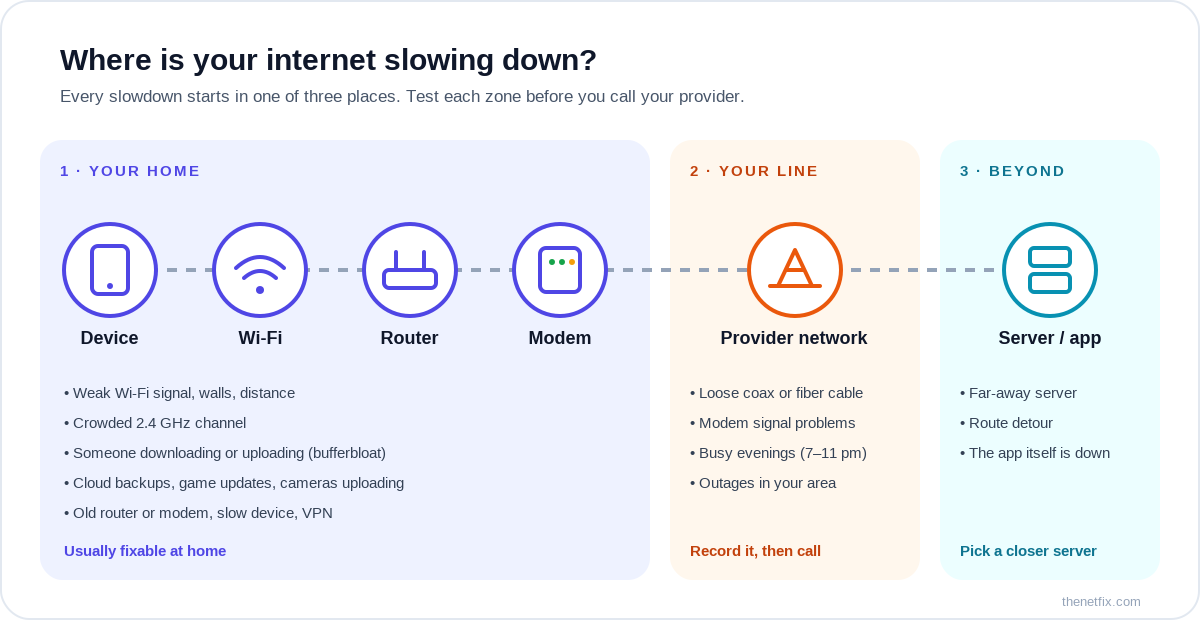
Most slow internet at home isn't the plan. It's usually one of ten things: a weak Wi-Fi signal, the wrong Wi-Fi band, someone else downloading or uploading (bufferbloat), hidden backups, an old router or modem, a slow device, busy evenings, a line that drops, slow DNS or a VPN, or a plan that really is too small. Restart the modem and router, then run Test & Optimize: it checks speed, lag, Wi-Fi, DNS and more in about two minutes and tells you whether the problem is in your home, on your line or beyond it, with the fix for each.
Quick fixes to try in the next 5 minutes
If your internet is slow right now and you just want it working, do these in order. Each one takes a minute, and together they fix a surprising share of "why is my Wi-Fi so slow?" problems without calling anyone.
- Restart the modem and router the right way: unplug both, wait 30 seconds, plug the modem in first, wait until its lights settle (two to five minutes), then plug in the router. If you have one combined gateway from your provider, just unplug it for 30 seconds.
- Check whether it's the service, not you. Is it down? checks the app's own status page and your connection side by side.
- Pause big downloads and uploads: game updates, cloud photo backups, a security camera uploading clips, a torrent. Then test again.
- Move closer to the router, or switch the device to the 5 GHz network if your router shows two names.
- Turn off any VPN or "secure browsing" app for a minute and see if pages load normally.
- Run Test & Optimize to find what's left. It only takes about two minutes and needs no app or account.
First: is your internet slow, or is it laggy?
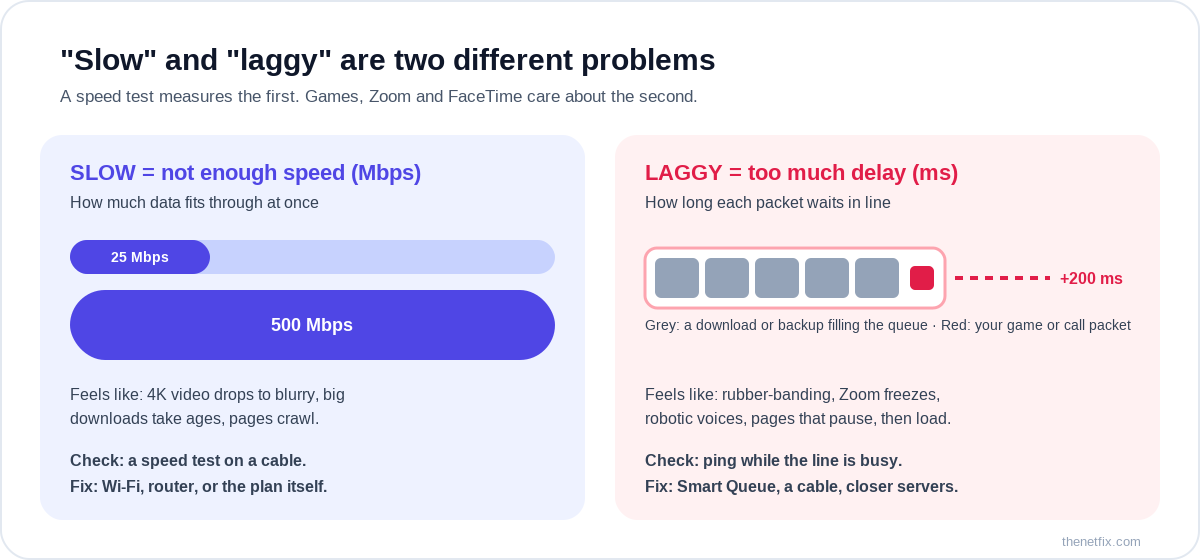
People say "my internet is slow" for two very different problems, and the fixes are different, so it's worth thirty seconds to tell them apart.
- Slow means not enough speed (bandwidth, measured in Mbps). Big downloads crawl, Netflix or YouTube drops to a blurry picture, and a speed test shows a low number.
- Laggy means too much delay (latency or ping, measured in milliseconds). Pages pause before they load, games rubber-band, Zoom, Teams and FaceTime freeze or turn robotic, yet a speed test can look perfectly fine.
| What you notice | Slow or laggy? | Most likely cause |
|---|---|---|
| Slow in one room, fine next to the router | Slow | Wi-Fi signal (cause 1) |
| Slow on the phone, fine on the laptop | Slow | Wi-Fi band or the device (causes 2 and 6) |
| Fine until someone streams, uploads or games | Laggy | Bufferbloat (cause 3) |
| Random slowdowns, nobody is doing anything | Both | Hidden uploads and updates (cause 4) |
| Every device is slow, even on a cable | Slow | Router, modem or the line (causes 5 and 8) |
| Fine in the morning, slow every evening | Both | Evening congestion (cause 7) |
| Drops out completely for seconds or minutes | Drops | Modem signal, outage or Wi-Fi (cause 8) |
| Websites slow to start, then load fine | Laggy | DNS or a VPN (cause 9) |
| A cable test is slow and matches your bill | Slow | The plan itself (cause 10) |
Step 1: test your internet speed the right way
One quick speed test on your phone, in the back bedroom, while the TV streams in 4K, tells you very little. To find out why your internet is slow, you need a few numbers taken the right way.
- Test from where the problem happens, on Wi-Fi, and write down download, upload, ping and jitter.
- If you can, test again on a laptop plugged into the router with an Ethernet cable. Wired is the fair test of what your provider delivers; Wi-Fi is the test of your home network.
- Look at ping while the line is busy, not just idle ping. That's the number most speed tests hide, and the one that explains lag. The speed test measures it and grades it from A+ to F.
- Run it at the time it feels slow, and once at a quiet time (say, 10 am) to compare.
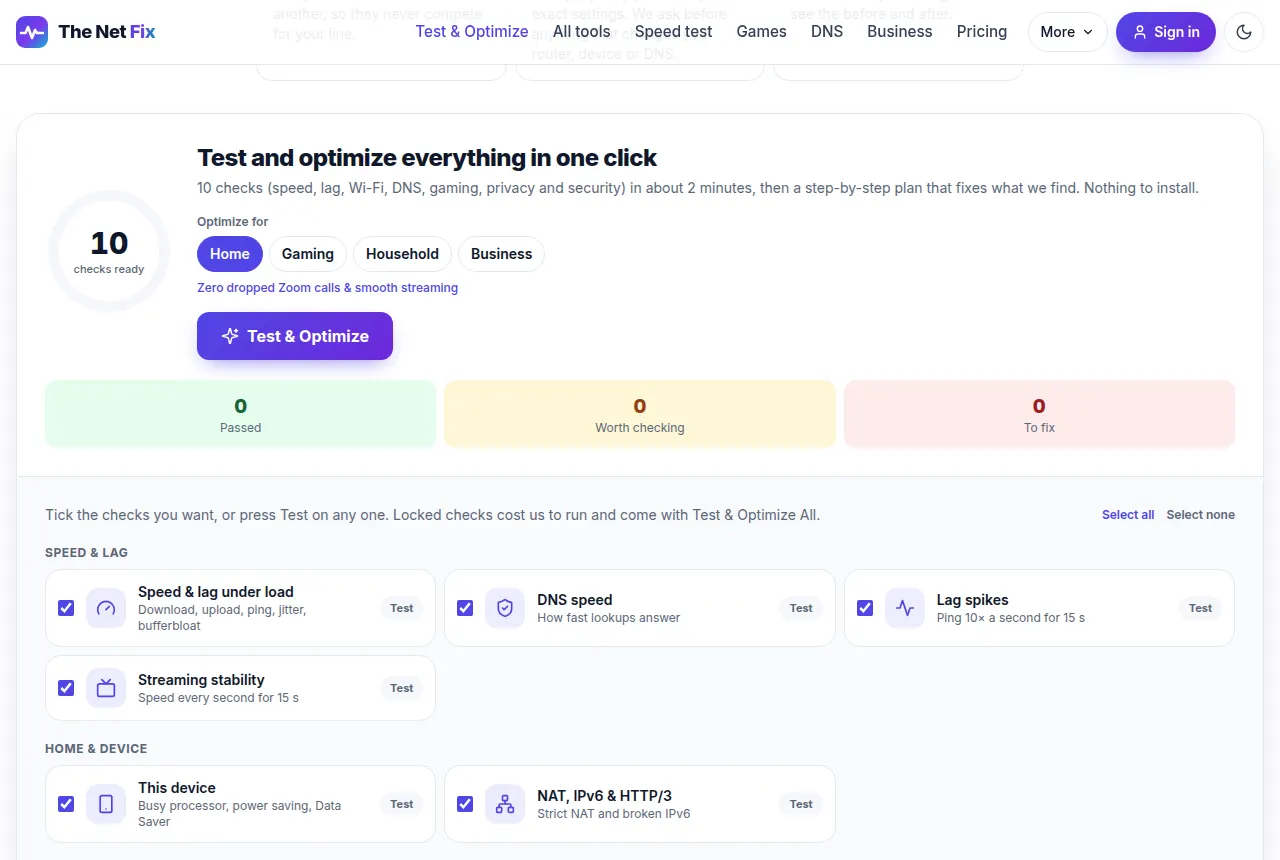
Or let one button do all of it. Test & Optimize runs the speed and lag test, a DNS check, a lag spike finder, a streaming check, a device check and a NAT and IPv6 check one after another (never two at once, so they don't skew each other), then turns the results into a step-by-step fix plan.
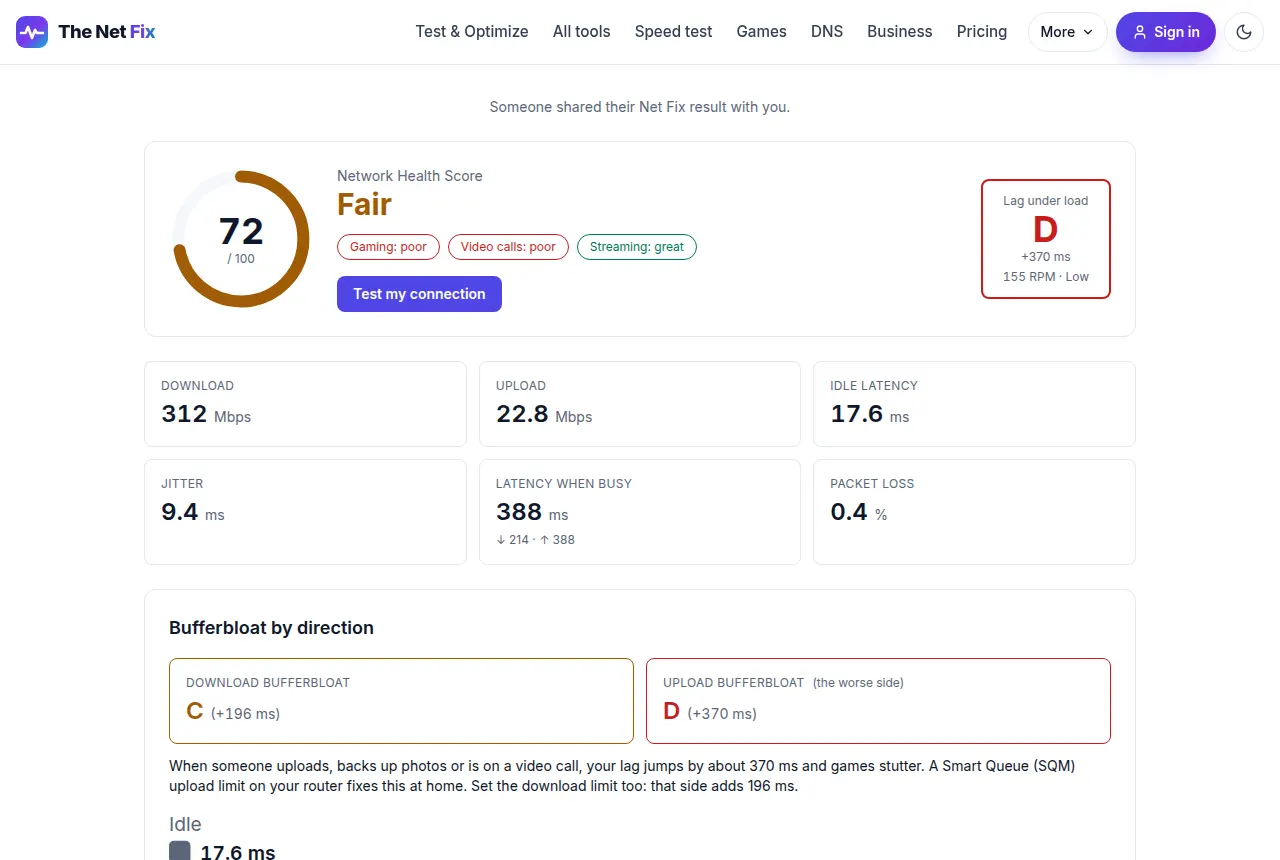
Here is what a typical "my internet is slow but the speed test is fine" result looks like. This example connection gets 312 Mbps down, which is plenty, but its ping jumps from 18 ms to 388 ms the moment the upload is busy. That's a grade D for lag under load, and it explains why video calls freeze whenever someone's phone backs up photos.
| Measurement | Good | Worth fixing | What it affects |
|---|---|---|---|
| Download | 25 Mbps per person streaming in 4K | Well below your plan on a cable | Streaming, downloads, page loads |
| Upload | 10–20 Mbps or more | Under 5 Mbps | Video calls, cloud backups, cameras, streaming yourself |
| Idle ping | Under 30 ms | Over 60 ms to a nearby server | How snappy everything feels |
| Ping when busy (bufferbloat) | Under +30 ms over idle (A or B) | Over +60 ms (C to F) | Lag in games and calls when others are online |
| Jitter | Under 10 ms | Over 30 ms | Robotic voices, rubber-banding |
| Packet loss | 0% | Over 1% | Stutter, freezes, dropped calls |
How much internet speed do you actually need?
Before you blame the plan, check whether it's really too small. Most activities need far less than people think. In 2024 the FCC set 100 Mbps down and 20 Mbps up as its benchmark for home broadband, and that covers a busy household comfortably when the home network is working well.
| Activity | Download | Upload | Lag-sensitive? |
|---|---|---|---|
| Web, email, social media | 1–5 Mbps | Under 1 Mbps | A little |
| HD streaming (Netflix, YouTube, Hulu) | About 5 Mbps | Under 1 Mbps | No, it buffers ahead |
| 4K streaming | 15–25 Mbps | Under 1 Mbps | No |
| Zoom, Teams, FaceTime (HD video) | About 3–4 Mbps | About 3–4 Mbps | Yes, very |
| Online gaming (Fortnite, Call of Duty, Valorant) | 3–6 Mbps | 1–3 Mbps | Yes, the most |
| Game downloads and updates (50–150 GB) | As much as you have | None | No, but it causes lag for others |
| Security cameras uploading | None | 2–4 Mbps per camera | No, but it fills the upload |
Add up what happens at the same time in your busiest hour. A household of four streaming 4K on two TVs, with one video call and one gamer, needs roughly 60 Mbps down and 10 Mbps up. If your plan is 300 Mbps and it still feels slow, a bigger plan probably won't fix it; one of the causes below will. Read more in how much internet speed do I need? and is 100 Mbps good enough?.
Cause 1: a weak Wi-Fi signal and bad router placement
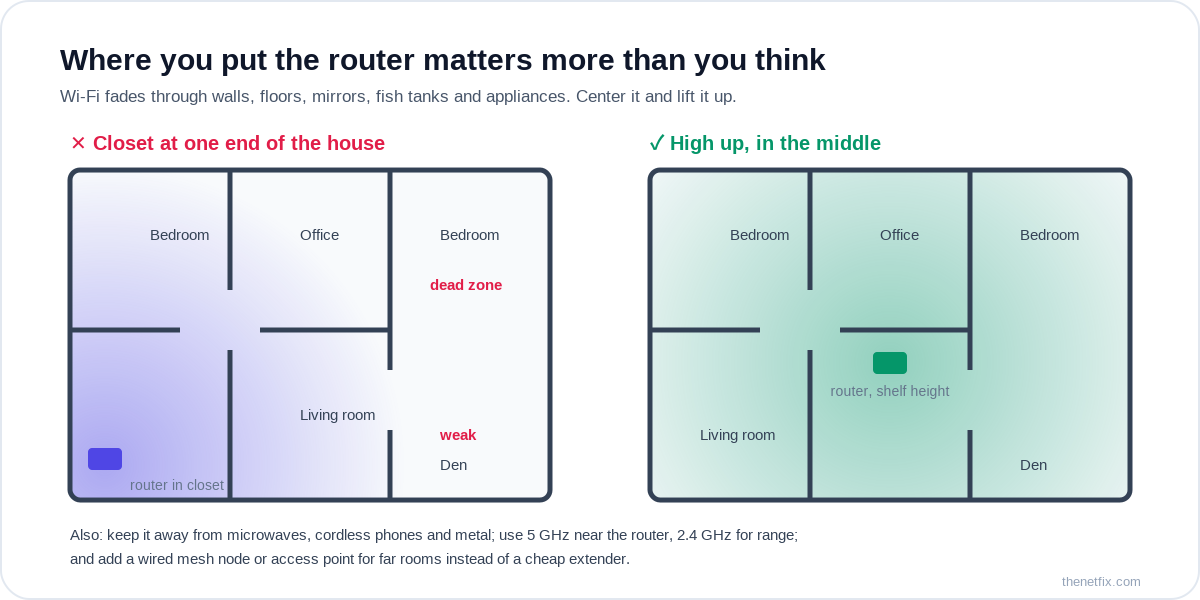
This is the number one reason Wi-Fi is slow in American homes. Wi-Fi is radio, and it fades fast through walls, floors, brick, mirrors, fish tanks, kitchen appliances and the metal ductwork many houses have between floors. A router tucked in a closet, behind the TV, in the basement or at one end of a long ranch house leaves the far rooms with a weak signal, and a weak signal means a slow, unstable connection.
How to tell
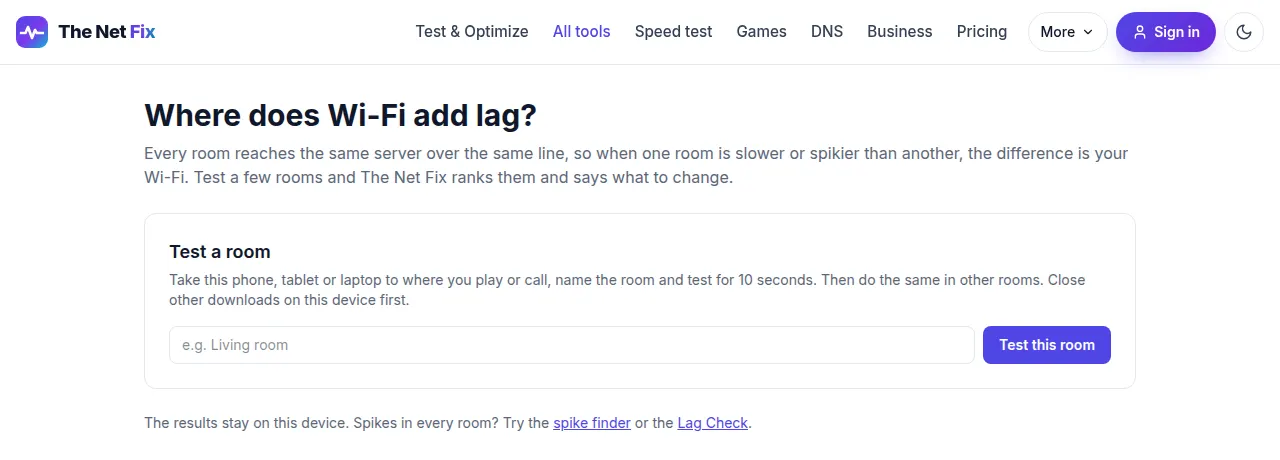
Test next to the router, then where the problem is. If it's fine next to the router and slow two rooms away, it's the signal. The Wi-Fi room check makes this easy: name a room, test for ten seconds, repeat in other rooms, and it ranks them and says what to change.
The fix
- Move the router to the middle of the home, at shelf height or higher, out in the open. Even a few feet out of a cabinet helps.
- Use a cable for anything that doesn't move: TVs, consoles, desktop PCs. Every wired device also frees up Wi-Fi for the rest.
- For big or multi-story homes, use a mesh system or a second access point, ideally with a wired link back to the router. See do Wi-Fi extenders work?.
- Can't run Ethernet? Your home may have coax outlets for MoCA adapters, or use powerline adapters. Both usually beat a cheap plug-in extender.
Cause 2: the wrong Wi-Fi band or a crowded channel
Most routers broadcast on 2.4 GHz and 5 GHz, and newer Wi-Fi 6E and Wi-Fi 7 routers add 6 GHz. 2.4 GHz reaches further but is slow and crowded, especially in apartments and townhouses where you can see twenty neighbors' networks. Phones and smart TVs often cling to 2.4 GHz, which is the classic reason Wi-Fi is slow on the phone but fast on the laptop.
- Within a room or two of the router, use 5 GHz (or 6 GHz). If your router shows one network name for both, it decides for you; if it shows two, pick the 5 GHz one on devices that stay near the router.
- Let the router pick the channel automatically, then restart it so it re-scans. On 2.4 GHz, only channels 1, 6 and 11 don't overlap.
- Keep the router away from microwaves, cordless phones and baby monitors, which share the 2.4 GHz band.
- Update the router's firmware. Old firmware is a common cause of drops and slow Wi-Fi.
For more, see is 5 GHz or 2.4 GHz better? and why is my Wi-Fi slow on my phone but fast on my laptop?.
Cause 3: the internet slows down when someone else uses it (bufferbloat)
If your internet is fine until someone starts Netflix, a game update, a Zoom call or a photo backup, you almost certainly have bufferbloat. When a big transfer fills your line, the extra data piles up in a queue inside your modem or router, and everything else, your web page, your game, your call, waits at the back of that queue. Ping that was 15 ms can jump past 200 ms for as long as the transfer runs.
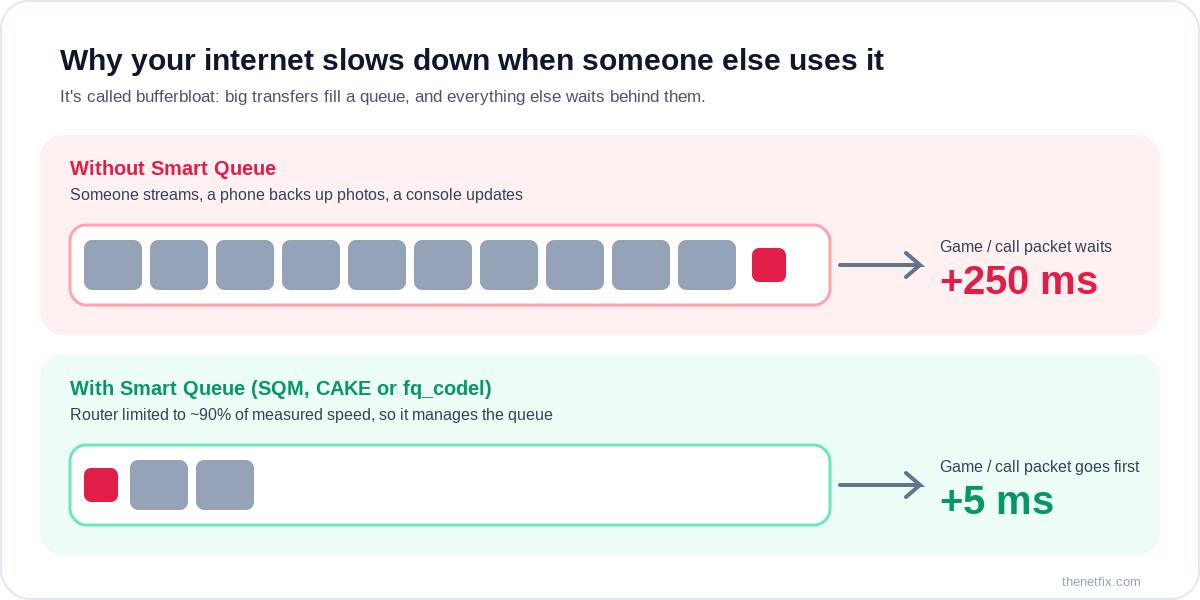
Upload bufferbloat is the sneaky one in the US, because cable plans often have upload speeds of only 10–35 Mbps against hundreds of Mbps down. One phone backing up videos to iCloud or Google Photos, or a few doorbell and security cameras uploading clips, can fill the upload and make the whole house feel slow.
The fix: turn on Smart Queue (SQM)
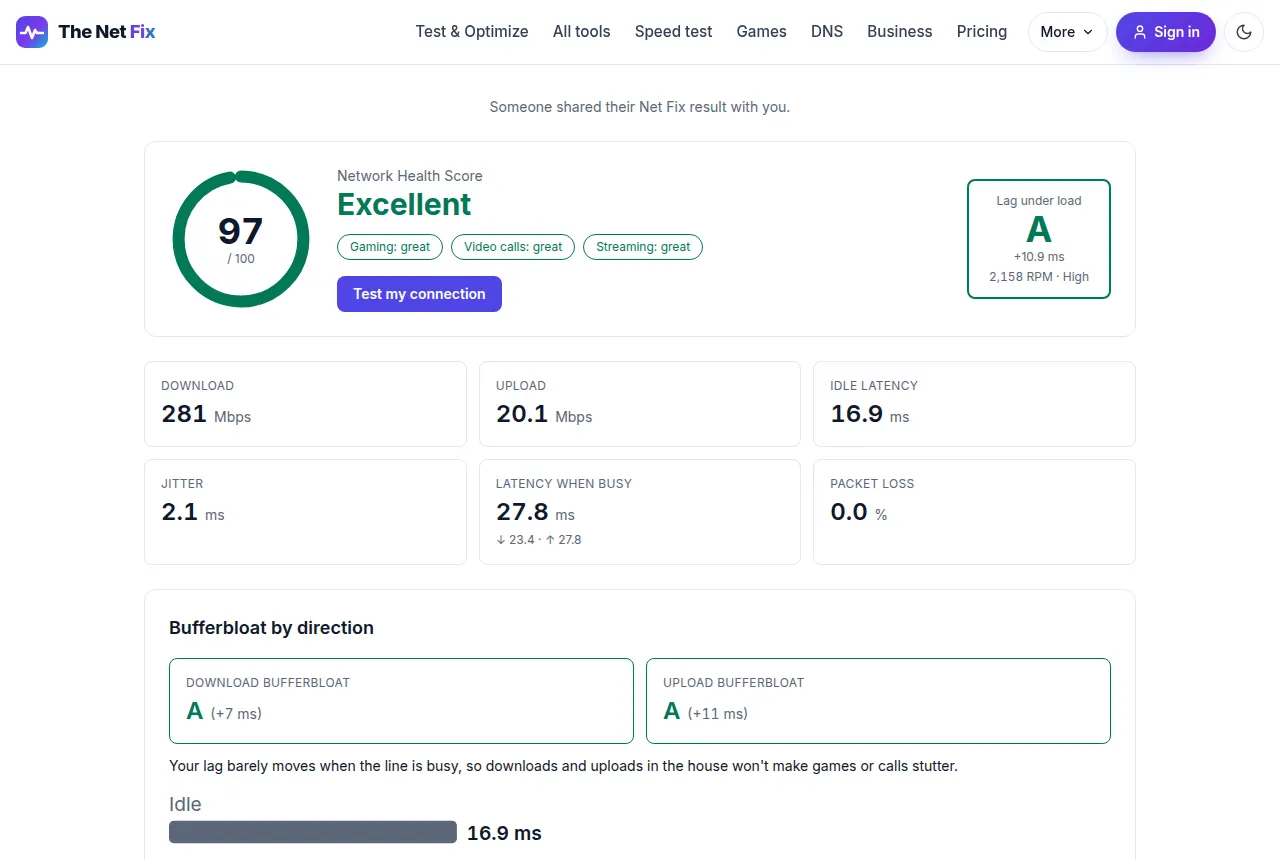
Smart Queue Management, often labeled SQM, Smart QoS, Adaptive QoS, or listed as CAKE or fq_codel, limits your router to slightly under your real speed so it manages the queue instead of the modem. Done right, ping under load stays within a few milliseconds of idle, and you give up maybe 5–10% of peak speed you never noticed. The Smart Queue assistant turns your measured speeds into the exact numbers to type in.
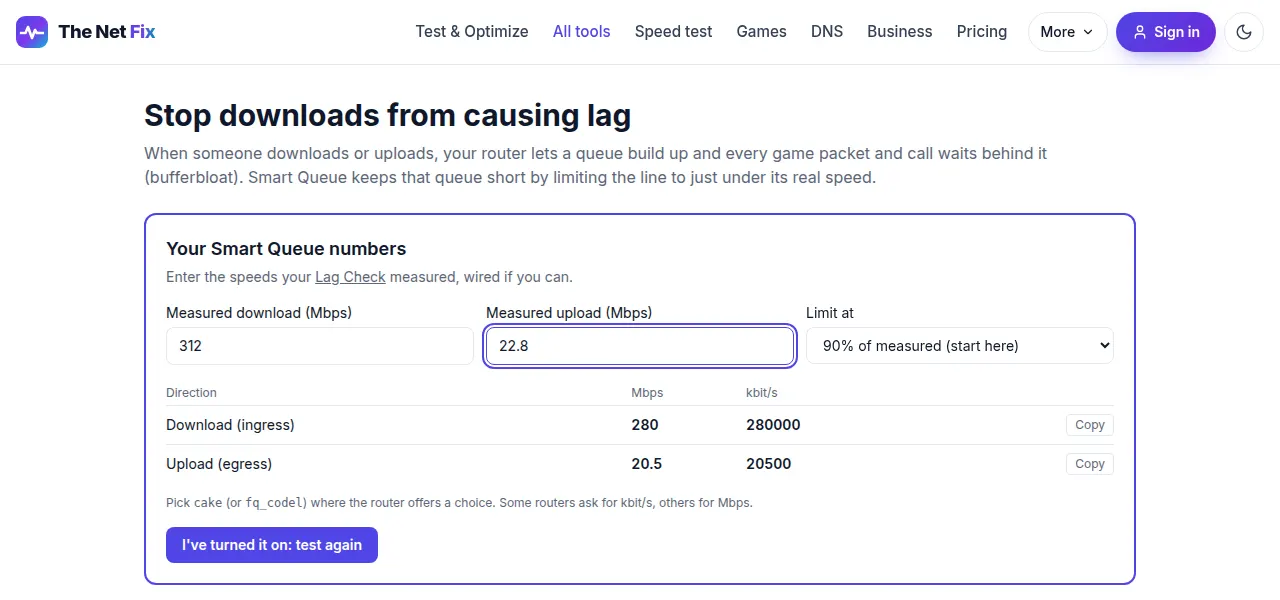
Where the setting lives depends on the router: see the guides for ASUS, TP-Link, Netgear, eero, Google Nest Wifi, UniFi, OpenWrt and more. Many provider-supplied gateways have no Smart Queue at all; in that case, putting your own router behind it (with the gateway in bridge mode where your provider allows it) is the usual fix.
Here's the same example connection after Smart Queue: 281 Mbps down instead of 312, nobody notices that, but lag under load went from +370 ms (D) to +11 ms (A). Calls stopped freezing even with backups running.
Cause 4: hidden uploads and background downloads
When the internet is slow and "nobody is doing anything", something usually is. The common culprits in American homes:
- Consoles downloading updates in rest mode (PlayStation, Xbox, Nintendo Switch).
- Steam, Epic, Battle.net and the Xbox app patching games in the background.
- Windows Update, including Delivery Optimization, which can upload updates to other PCs.
- iCloud, Google Photos, OneDrive and Dropbox syncing photos and videos, especially right after a trip.
- Ring, Nest, Arlo, Wyze and other cameras uploading clips around the clock.
- Smart TVs and streaming sticks updating apps overnight, which can run into the morning.
Smart Queue (cause 3) stops these from causing lag even when they run. To schedule or limit them, the background downloads guide shows where each setting lives, and the lag spike finder shows when a spike starts, so you're not guessing.
Cause 5: an old router, modem or rented gateway
If every device is slow, even on a cable, look at the equipment. A router from 2016 may top out well below a modern 500 Mbps or gigabit plan, especially over Wi-Fi. Cable modems on older DOCSIS 3.0 can struggle on faster tiers, and a modem that runs hot or reboots at random will drop the connection.
- Check the router model's age and Wi-Fi standard. Wi-Fi 5 (802.11ac) still works; Wi-Fi 6 or newer handles many devices far better.
- Look up whether your modem is approved for your plan's speed on your provider's site.
- Plug a laptop directly into the modem (or gateway) and test. If that's fast and the router is slow, the router is the bottleneck.
- Check the Ethernet cable and port: a damaged cable or an old Cat5 cable can link at 100 Mbps. See why is my Ethernet slower than Wi-Fi?.
Buying your own modem and router can pay for itself in rental fees and lets you pick one with Smart Queue. The router guides show which brands support it. More in should I buy my own modem and router?.
Cause 6: only one device is slow
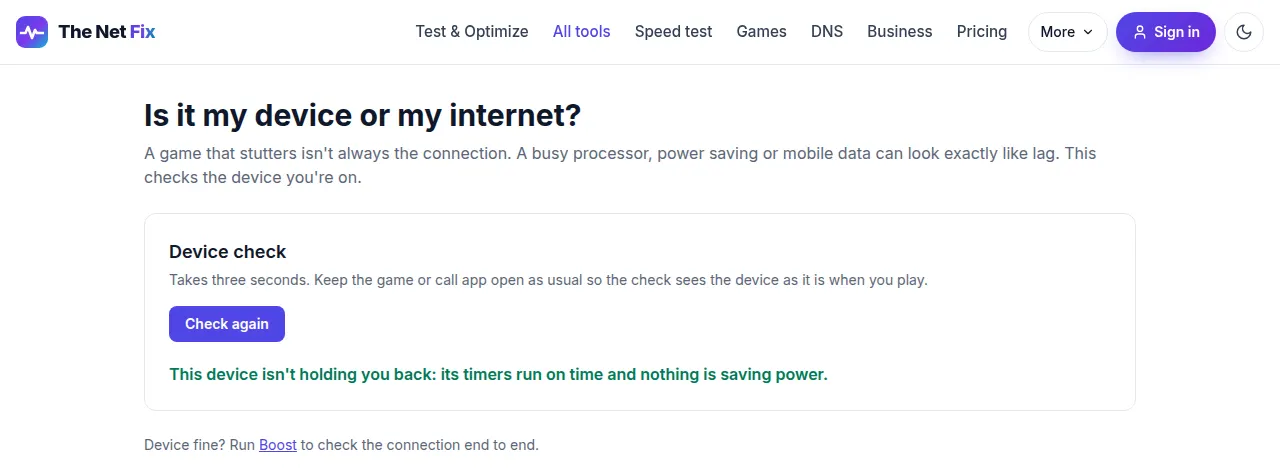
If the internet is slow on one device and fine on others in the same spot, it's that device. Usual suspects: Low Power Mode or battery saver, Data Saver or Low Data Mode, a VPN or antivirus web filter, dozens of browser tabs and extensions, a full drive, an old Wi-Fi card, or a laptop that has latched onto the 2.4 GHz band. The device check tells you in about three seconds whether the device itself is holding you back.
- Restart the device, then turn off Low Power Mode and Low Data Mode (iPhone) or battery saver and Data Saver (Android).
- On iPhone, Settings › Wi-Fi › your network: check Low Data Mode is off. On Windows, set the network to Private and turn off metered connection.
- Forget the Wi-Fi network and join it again, and update the network driver on PCs.
- If a Windows PC is slow on every network, the network reset guide explains each reset command line by line.
Cause 7: internet slow at night
Evenings, roughly 7 to 11 pm, are when everyone streams, games and video-chats, so both your home and the wider network are at their busiest. Two very different things can be happening, and it matters which:
- Your home is busier. More people online at once means more bufferbloat and more Wi-Fi contention. Smart Queue and a few cables fix this.
- The local network is congested. Cable networks share capacity within a neighborhood, and fixed wireless (5G home internet) shares the cell tower with phones. If a wired test with nothing else running is slow every evening and fine in the morning, that's the line.
To know which, record it rather than guessing: run the speed test on a cable at a few different hours for a week, and Providers compared shows evening slowdowns by provider and city, built from results people chose to share. See also why does my internet slow down at night?, and the full guide, internet slow at night? why evenings lag, covers peak hours, throttling and every fix.
Cause 8: internet keeps cutting out or disconnecting
Drop-outs are a different animal from slowness. First work out what drops: if your device loses Wi-Fi (the Wi-Fi icon disappears), it's your Wi-Fi. If Wi-Fi stays connected but nothing loads, the modem or line dropped.
- Only Wi-Fi drops: move closer, update router firmware, change the channel, and check for a power-saving setting on the device's Wi-Fi adapter.
- The whole connection drops: look at the modem's lights when it happens. Blinking online or upstream lights mean it lost the line. Check that the coax is finger-tight at the wall and the modem, remove unused splitters, and make sure the modem isn't overheating.
- Fiber: check the thin fiber cable from the wall to the ONT isn't kinked or bent sharply.
- 5G home internet: move the gateway to a window facing the tower, higher up, and away from other electronics.
- Check for a local outage with your provider's app or website, and use Is it down? for apps and games.
If it keeps dropping on a wired connection, you need a record of when and for how long: note each drop, and check the modem's event log, which is exactly what support needs. The full guide, with fixes by device, modem lights and signal levels: internet keeps cutting out? 15 fixes.
Cause 9: slow DNS, a VPN or security software
If websites hesitate for a second before they start loading, then load quickly, look at DNS. DNS turns names like netflix.com into addresses, and a slow or overloaded resolver adds a delay to every new site. The speed test times your current resolver against others, and the DNS guide shows how to change it on each device or on the router.
VPNs are the other big one. A VPN sends everything through its own server, often in another city, which adds delay and can cap speed. If the internet is slow only with the VPN on, try a closer VPN server or turn it off for streaming and gaming. Some antivirus "web shield" features inspect every connection and slow things down too. For the record, changing DNS won't lower your ping in games: see does changing DNS lower ping?.
Cause 10: your plan, data cap or connection type
Sometimes the plan really is the limit. If a wired test with nothing else running roughly matches what you pay for, and that's still not enough for your household (see the table above), it's time to look at a bigger plan or a different connection type. A few US-specific things to check first:
- Your broadband label. Since 2024, US providers must show a broadband "nutrition" label with typical speeds and latency for each plan. Compare the typical speed to your wired test.
- Data allowances. Some plans still have a monthly data allowance, and going over can mean extra charges or slower speeds. Check your account.
- Prioritization on 5G home internet. Fixed wireless plans can be slowed below phone traffic when the tower is busy, which shows up as evening slowdowns.
- Promo plans that ended. Speeds and prices can change when an introductory deal expires; confirm what plan you're on now.
Our Am I getting the speed I pay for? answer explains how to test fairly before you call.
Fixes by connection type: cable, fiber, 5G home internet, satellite and DSL
The same symptoms have different usual causes depending on how your home is connected. Here's what to check first for the main US connection types.
| Connection | Examples | Typical idle ping | Check first |
|---|---|---|---|
| Fiber | AT&T Fiber, Verizon Fios, Google Fiber, Frontier Fiber | 5–20 ms | Wi-Fi and the router; fiber itself is rarely the problem |
| Cable | Xfinity, Spectrum, Cox, Optimum | 10–35 ms | Upload bufferbloat, coax connections, modem age |
| 5G home internet | T-Mobile, Verizon, AT&T Internet Air | 25–60 ms | Gateway placement, evening tower congestion |
| Low-orbit satellite | Starlink | 25–60 ms | Obstructions, satellite handoff spikes, bufferbloat |
| Geostationary satellite | HughesNet, Viasat | 600 ms or more | Physics: distance to orbit sets the floor |
| DSL | Older phone-line service | 15–50 ms | Distance from the exchange, line noise, filters |
Using Starlink? Its regular satellite handoffs can add short spikes every several seconds; the lag spike finder recognizes the pattern and the Starlink guide covers what you can change. On cable, upload bufferbloat is so common that Smart Queue should be your first step. On fiber, if things are slow, it's almost always Wi-Fi or an old router.
Distance matters too. Light in fiber covers roughly 124 miles per millisecond, so a round trip adds about 1 ms of ping per 60 miles to the server, before any equipment adds its share. New York to Los Angeles is around 2,450 miles in a straight line, so a coast-to-coast connection can't go much below 40 ms and usually sits at 60–80 ms. If your game picks a server on the other coast, no setting at home will fix it; the game server check finds the closest region from your home.
When it really is your provider: how to prove it
If wired tests are slow with nothing else running, the modem has been restarted and the cables checked, and it keeps happening, it's time to call. Support lines start with a script ("restart your modem", "is it Wi-Fi?"), so arrive with evidence that you've done that already.
- Test on a cable, several times a day, for a few days. Note the time of each result.
- Note drop-outs: when, how long, and what the modem lights did.
- Keep it up for a week, through evenings and a weekend. Your recent speed test results stay in this browser, and each has a share link to attach to a ticket.
Just as useful: the report also says when the problem starts inside your home rather than on the line, so you don't spend an afternoon on hold for something a router setting would have fixed. See how do I prove to my ISP my internet is bad?.
What is The Net Fix, and how does it help?
The Net Fix (thenetfix.com) is a free internet checkup that runs in your browser on any phone, tablet or computer, with no app and no account. Where a normal speed test stops at a Mbps number, The Net Fix finds where the slowdown starts (your home, your line, or beyond it), walks you through the fix with the exact settings for your router and devices, and re-tests so you can see the before and after.
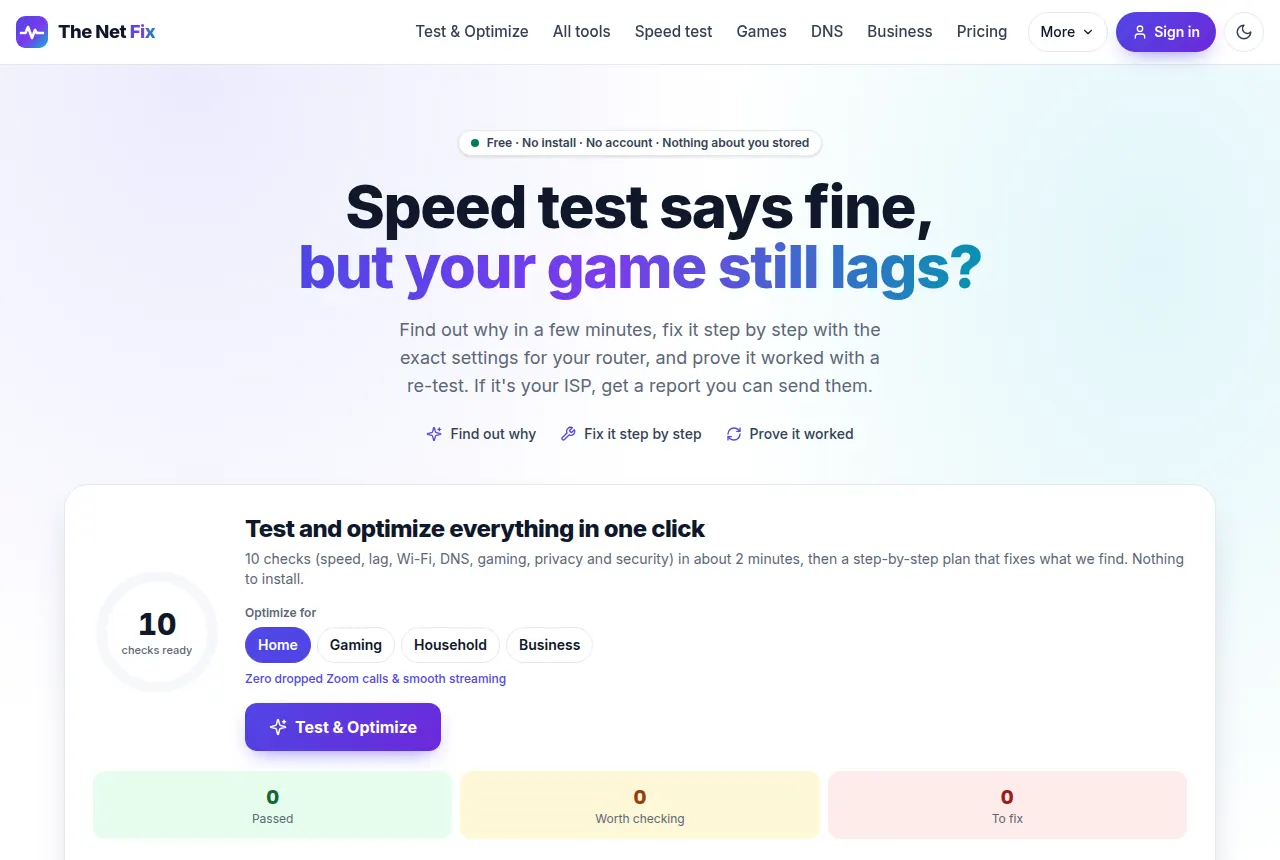
- Test & Optimize: every automatic check in one click, then a step-by-step fix plan.
- Speed test with lag under load: download, upload, ping, jitter, packet loss and a bufferbloat grade.
- Wi-Fi room check, lag spike finder and device check for problems inside the home.
- Streaming check and calls freezing at home for buffering and freezing Zoom, Teams and FaceTime calls.
- Game server check, NAT and IPv6 check, open port checker and per-game guides for gamers.
- DNS guide to switch to a faster resolver, and What is my IP? to see your public address and provider.
What it won't do: no app or website can make your plan faster than what you pay for, and we won't claim to. The Net Fix finds the bottlenecks that make a good plan feel slow and helps you remove them. The free checks store nothing about you; the privacy policy lists exactly what is kept. All the tools are listed in one place, and pricing explains why it's all free.
What doesn't help (and what to skip buying)
- A faster plan, when the problem is Wi-Fi, bufferbloat or a far server. More Mbps only helps if a wired test shows your line is often completely full.
- Cheap plug-in Wi-Fi extenders. They repeat a weak signal and often halve the speed. A mesh node or access point with a wired link is better.
- "Internet booster" and "RAM cleaner" apps. They don't change your connection.
- Router QoS that only ranks devices. Marking your laptop as "highest priority" doesn't stop the modem's queue filling up; Smart Queue does.
- A VPN to lower ping. It adds a stop, so ping usually goes up.
- Restarting the router every day. Once a month, or when something's wrong, is plenty; daily slowdowns that a restart "fixes" usually point to overheating or old firmware.
The 15-minute slow internet checklist
- Restart the modem, then the router, and check Is it down?.
- Run Test & Optimize from where it's slow, then once next to the router.
- If it's fast near the router and slow far away: move the router, use 5 GHz nearby, add a wired mesh node. Use the Wi-Fi room check.
- If lag jumps when the line is busy: turn on Smart Queue with numbers from the Smart Queue assistant.
- Schedule or limit background downloads and backups with the background downloads guide.
- If only one device is slow: run the device check and turn off power saving and VPNs.
- If websites hesitate before loading: change DNS with the DNS guide.
- If a wired test is still slow, or it keeps dropping: record a week of dated tests and drops and take them to your provider.
Skip the guesswork: one press runs every check above, tells you whether the problem is in your home, on your line or beyond, and walks you through the fix.
Run Test & Optimize (free)Questions
Why is my connection lagging and how do I fix my network?
A lagging connection is usually delay on your own side: Wi-Fi, a busy line (bufferbloat) or a device using the bandwidth. Test on a cable first, then check ping under load, then pause other devices. If lag only appeared recently, restarting the router can clear a glitch: does restarting your router lower ping? explains how to test it.
Will a faster internet plan fix lag?
Usually not. Lag comes from ping, Wi-Fi spikes and the line filling up when others use it, and a bigger plan changes none of those. Check lag under load with the speed test first; a game uses under 1 Mbps, as is 100 Mbps good for gaming? shows.
Why is my internet so slow all of a sudden?
A sudden slowdown usually means something changed: a device started a big download or backup, the router needs a restart or got a firmware update, a cable came loose, or there's an outage. Restart the modem and router, check Is it down?, then run Test & Optimize to see where it starts.
Why is my Wi-Fi slow but the speed test on a cable is fine?
Then your provider is delivering and the slowdown is your Wi-Fi: distance, walls, a crowded 2.4 GHz channel or router placement. The Wi-Fi room check shows which rooms lose out, and the Wi-Fi fix guide covers the fixes.
Why is my internet slow when someone else is using it?
Their download, upload or stream fills the queue in your modem or router, and everything else waits behind it. That's bufferbloat. Smart Queue on your router fixes it; the Smart Queue assistant gives you the numbers.
How do I know if my internet provider is throttling me?
Compare a wired test on your normal connection with one through a VPN at the same time. If streaming or one service is much slower without the VPN, it may be managed; if both are slow, it isn't throttling. For a record over days, repeat both tests at the same hours.
Will a new router fix slow internet?
It will if your router is old, has a weak signal for your home's size, or lacks Smart Queue. It won't if the problem is the line, a far server or a slow device. Test wired at the modem first; the router guides show which models have Smart Queue.
Is The Net Fix free?
Test & Optimize, the fix guides and the standalone tools are free, with no account and nothing to install; see pricing.
Does The Net Fix work with Xfinity, Spectrum, AT&T and Verizon?
Yes. The checks run in your browser and work with any provider and any connection type: fiber, cable, 5G home internet, satellite or DSL. Providers compared shows how providers do in your city.
Keep reading
- Is 100 Mbps good for gaming?
- Internet slow at night? 12 fixes
- Internet keeps cutting out? 15 fixes
- High ping but fast internet? 7 causes
- Internet slow on only one device?
- Does restarting your router lower ping?
- Fix lag under load (bufferbloat)
- Fix slow or unstable Wi-Fi
- Stop background downloads causing lag
- Calls freezing at home?
- The Net Fix docs and help center
- All questions answered
- Every free tool