Cloud gaming lag: how to fix GeForce NOW and Xbox Cloud Gaming latency
The Net Fix · Updated · 14 min read
The short answer
Cloud gaming lag is almost always the network between you and the data center, not the game. Use an Ethernet cable or 5 GHz Wi-Fi, stop other downloads and uploads, turn off any VPN and play on the nearest server. NVIDIA requires under 80 ms of latency to its data center for GeForce NOW and recommends under 40 ms; Xbox Cloud Gaming asks for at least 20 Mbps on a wired or 5 GHz connection. The speed test shows whether your ping jumps when the line is busy, the most common hidden cause.
Key points
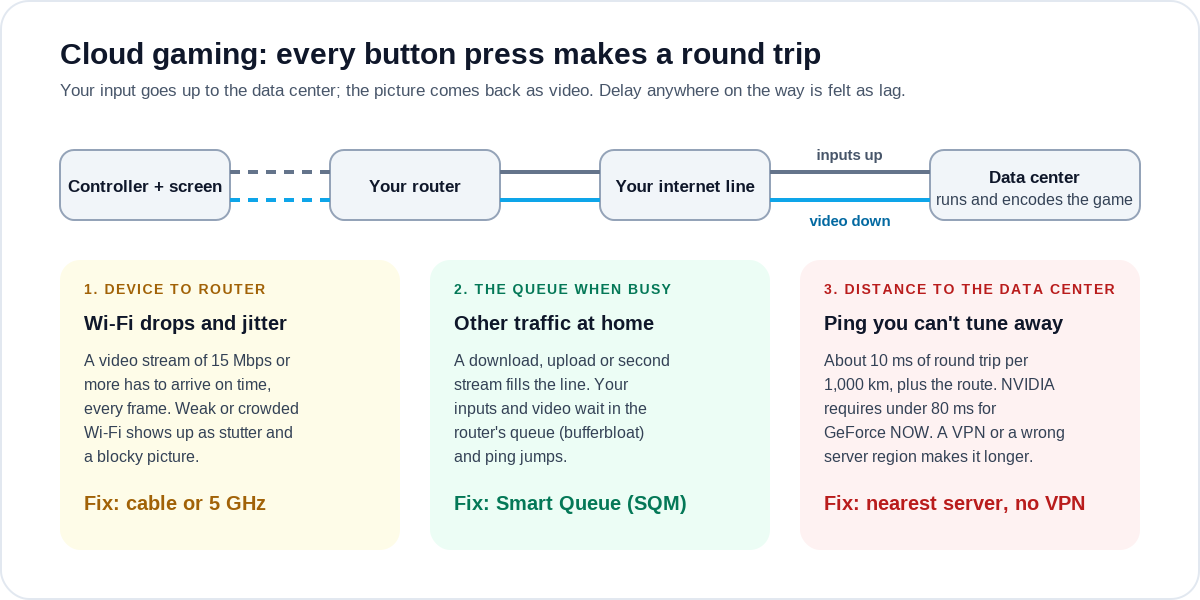
- In cloud gaming the game runs in a data center. Your button presses travel up, and the picture comes back as a video stream of 15 Mbps or more. Any delay or dropout on that round trip is felt at once, because nothing runs on your device to hide it.
- Two different problems get called lag. Stutter, freezes and a blocky picture come from jitter, packet loss or dips in speed, usually on Wi-Fi. Delayed controls with a clean picture come from high ping to the data center, a busy line, or the TV and controller.
- NVIDIA's requirement for GeForce NOW is under 80 ms of network latency to its data center, with under 40 ms recommended. Microsoft's pages for Xbox Cloud Gaming give a speed, at least 20 Mbps, and no latency figure.
- The fixes with the biggest effect, in order: a cable (or 5 GHz Wi-Fi close to the router), nothing else filling the line, no VPN, and the nearest server.
- If lag appears only when someone else is online, the cause is the queue in your router. Smart Queue (SQM) fixes that at home.
- If the service's own test shows more than 80 ms to the nearest data center on a cable with nothing else running, no setting at home will bring it down.
Why does cloud gaming lag when my internet is fast?
An ordinary online game runs on your console or PC and swaps small updates with a server, well under 1 Mbps. Your own machine draws every frame, so a late packet is often smoothed over. Cloud gaming is the other way round. The data center runs the game, compresses each frame and sends it to you as video, and it can only do that after your input has reached it.
That changes what the connection has to do. It must deliver a steady 15 to 75 Mbps, depending on resolution, with every frame on time, and it must carry each button press to the data center with as little delay as possible. A plan with plenty of Mbps does the first part on paper. It says nothing about timing: jitter, lost packets and ping that climbs when the line is busy are what break a stream, and a normal speed test hides all three.
What internet do GeForce NOW and Xbox Cloud Gaming need?
These are the figures the two companies publish, checked on November 17, 2026. NVIDIA's come from its GeForce NOW system requirements page and its support articles. Microsoft's come from Xbox Wire's "Getting Started with Xbox Cloud Gaming" (December 19, 2025) and the Xbox on TVs page.
| GeForce NOW (NVIDIA) | Xbox Cloud Gaming (Microsoft) | |
|---|---|---|
| Latency to the data center | Under 80 ms required; under 40 ms recommended | No figure published on the pages we read |
| Lowest speed | 15 Mbps (1280x720 at up to 60 FPS) | 10 Mbps on mobile devices |
| 1080p at 60 FPS | 25 Mbps | 20 Mbps on consoles, PCs, tablets and TVs |
| 1440p | 35 Mbps at 120 FPS | Up to 1440p for Game Pass Ultimate members; no separate speed published |
| 4K | 45 Mbps at 120 FPS on PC and Mac; 40 Mbps at 60 FPS on TVs | Not listed; streams go up to 1440p |
| 240 or 360 FPS | 55 Mbps | Not listed |
| Connection | Wired Ethernet, or a router with 5 GHz Wi-Fi | Wired Ethernet where possible; 5 GHz Wi-Fi or 5G |
| Built-in network test | Yes, in the PC, Mac, Android and SHIELD apps; not on iPhone or iPad | Not mentioned on the pages we read |
Two details are easy to miss. NVIDIA's troubleshooting article gives higher speeds for a comfortable stream than its minimums: 50 Mbps for 1080p, 64 Mbps for 1440p and 75 Mbps for 4K. And those numbers are for the stream alone. Anything else the household does comes on top, which is why a 100 Mbps plan can still stutter at 8 p.m. Is 100 Mbps good for gaming? has the sums for a busy home.
Is it stutter or input delay? Find your cause
Match what you see to the row. Each cause has a different fix, and changing settings at random usually makes the picture worse without touching the lag.
| What you see | Most likely cause | What to do first |
|---|---|---|
| Picture turns blurry or blocky, resolution drops, then recovers | Speed dips; the stream lowers its bit rate to keep going | Check Wi-Fi signal and other traffic; run a 30-second speed recording |
| Short freezes, skipped frames, crackling sound | Jitter or packet loss, most often on Wi-Fi | Test on an Ethernet cable; if it stops, Wi-Fi was the cause |
| Clean picture, but controls feel late all the time | High ping to the data center: distance, a VPN, or the wrong server region | Run the service's network test with the VPN off |
| Fine when you're alone, bad when others are online | The router's queue fills up (bufferbloat) | Test ping under load, then turn on Smart Queue |
| Bad in the evening, fine in the morning | Busy hours on your line or in your home | Compare a test at each time of day |
| A hitch every second or every few seconds on a Mac | The AirDrop radio (AWDL) or a Wi-Fi scan | Turn off AirDrop and Location Services while you play |
| Late controls on a TV only | Picture processing in the TV, or a wireless controller | Turn on the TV's game mode; try the controller on a cable |
| Lag in cloud games only, at any hour, on a cable | The data center is far away, or the service is having a bad day | Check the latency in the service's test and its status page |
For the first row, the streaming check records your speed every second for 30 seconds, so you see dips that an average hides. For regular hitches, the lag spike finder records ping ten times a second and names the pattern; lag spikes every few seconds explains each one.
How do I fix cloud gaming lag, step by step?
Work through these in order and test after each one. The early steps fix most cases and cost nothing.
- Measure before you change anything. In GeForce NOW on a PC or Mac, open the menu, choose Settings, leave Server Location on Auto and select Test Network. Note the ping, jitter and packet loss. Then run the speed test and note the lag-under-load grade.
- Plug in an Ethernet cable. NVIDIA and Microsoft both put a wired connection first. A cable removes Wi-Fi jitter and loss for that device completely; Ethernet vs Wi-Fi for gaming shows how much Wi-Fi adds.
- If you can't run a cable, use 5 GHz. Xbox Wire's advice for dual-band routers is to make sure the device connects only to the 5 GHz network. Sit close to the router, and pick a clear channel with the Wi-Fi fixes. For a far room, see step 9.
- Stop everything else that uses the line while you test: game and system updates, cloud backups, video streams, uploads. If the lag goes away, something at home was competing; what is using my bandwidth shows how to find it.
- Turn off any VPN. NVIDIA lists it among the causes of stutter and high latency, and warns that a VPN can connect you to the wrong data center.
- Check the server. In GeForce NOW, Auto normally picks the nearest data center; the test shows which one you'll be sent to, and the drop-down lets you try another. A far server region adds ping that nothing at home removes.
- Fix the queue. If the speed test graded lag under load B or worse, turn on Smart Queue in your router. The Smart Queue assistant gives the numbers to enter. Check that the limit still leaves enough Mbps for your stream.
- Lower the stream to fit the line. In GeForce NOW, Settings then Streaming Quality offers Balanced, Cinematic, Competitive and Custom modes. If the picture breaks up, drop the resolution or frame rate one step instead of forcing a high bit rate. NVIDIA recommends leaving Max bit rate on Auto.
- For a room the cable can't reach, use the coax or mains wiring. MoCA vs mesh vs powerline compares them for exactly this job.
- Check the last few feet. Put the TV in game mode, and try the controller on a USB cable. For mouse and keyboard play, NVIDIA suggests a USB wired or wireless gaming mouse.
On a Mac: AirDrop, AWDL and Location Services
NVIDIA's troubleshooting article has a section just for macOS. It lists AWDL (the radio behind AirDrop and Universal Clipboard), AirDrop itself and Location Services as causes of stutter, because each makes the Wi-Fi chip leave your network briefly to listen elsewhere. Turning them off while you play, or using Ethernet, stops it. Our guide to background downloads and the Mac setting behind spikes shows where the switches are.
Why does cloud gaming lag when someone else uses the internet?
This is the cause most guides leave out. When a download, an upload or a second stream fills your line, packets queue in the router or modem. Your inputs and the video frames wait in that queue with everything else. The speed is still there, so a speed test looks fine, but ping rises by tens or hundreds of milliseconds while the queue lasts. This is bufferbloat, also called loaded latency.
Cloud gaming is more exposed to it than ordinary online play, because the stream itself is a large, steady download. On a 50 Mbps line, a 25 Mbps stream plus one 4K film and a phone backup is enough to fill it. Uploads matter too: your inputs are tiny, but they share the upload direction with video calls and backups.
The Net Fix's speed test measures this directly. It compares ping on a quiet line with ping while the line is full and grades the difference: under 5 ms added is A+, under 30 ms A, under 60 ms B, under 200 ms C, under 400 ms D, and more than that F. With GeForce NOW's limit at 80 ms in total, a C grade alone can take you over it whenever someone else is online.
Should router QoS be on or off for cloud gaming?
NVIDIA's advice looks contradictory at first. It says to try turning QoS off, because it has hurt performance on some routers (it names the Netgear Nighthawk X6), and in the same article says you can turn QoS on and add GeForce NOW's ports, 49003 to 49006, to a profile. Both can be true. Older priority-based QoS can misjudge a video stream and throttle it. Smart Queue (SQM with fq_codel or CAKE) doesn't sort traffic by type; it keeps every queue short.
So test it, don't guess. Run the speed test with QoS off and again with it on, and keep whichever gives the better lag-under-load grade without cutting your speed below what the stream needs. Fix lag under load has the method, the router guides show where the setting is on each brand, and is a gaming router worth it? covers what to do when your router has no setting that works.
Which GeForce NOW and Xbox settings lower lag?
| Setting | Where | What it does for lag |
|---|---|---|
| Server Location | GeForce NOW: Settings | Auto picks a data center for you; the test shows which. A nearer one means lower ping |
| Streaming Quality mode | GeForce NOW: Settings > Streaming Quality | Balanced lets the network test choose. Competitive turns on Reflex and high frame rates; NVIDIA asks for wired Ethernet and at least 35 Mbps |
| Frame rate | GeForce NOW: Custom mode | NVIDIA notes 120 FPS can reduce latency, but may cause tearing on a 60 Hz screen |
| VSync | GeForce NOW: Custom mode | Adaptive is NVIDIA's recommendation. Off lowers latency and may tear |
| Max bit rate | GeForce NOW: Custom mode | Auto is recommended. A lower cap helps a line that can't hold the stream |
| 5 GHz only | Your device's Wi-Fi settings | Xbox Wire: on a dual-band router, make sure the device joins only the 5 GHz network |
| Resolution tier | Xbox Cloud Gaming | Up to 1440p at a higher bit rate for Game Pass Ultimate members (Xbox Wire, February 25, 2026); a sharper stream needs a steadier line |
A rule that holds for both services: the higher the resolution and frame rate, the more data must arrive on time, so a weak link shows up sooner. In Balanced mode NVIDIA itself limits 4K and 1440p at 120 FPS, and anything at 240 or 360 FPS, to wired Ethernet. If you play on Wi-Fi, 1080p at 60 FPS that never stutters feels better than 4K that does.
When can't you fix cloud gaming lag at home?
- The data center is too far. Distance adds about 10 ms of round trip for every 1,000 km, plus whatever the route adds. If NVIDIA's test shows more than 80 ms on a cable with nothing else running, you're outside what the service is built for. The game server ping shows your round trip to data center regions.
- Your line's own latency is high or uneven. Satellite and 5G home internet change from minute to minute; lower ping on Starlink and 5G covers what can be tuned. Cable and fiber differ less than people expect: see fiber vs cable for gaming.
- The evening rush is on the provider's side. NVIDIA notes that some providers are congested between 8 p.m. and 10 p.m. Rule out your own home first: internet slow at night shows how to tell the two apart.
- Packets are lost on the line itself. Loss that stays on a cable with nothing else running points to the modem, the wiring or the line. How to fix packet loss finds where it starts.
- A school, work or dorm network blocks or shapes the stream. NVIDIA says such firewalls need UDP port 5004 and ports 10000 to 20000 open. That's a request for the network's administrator, not a setting you can change.
- The service is busy or down. NVIDIA has a status page for GeForce NOW; our is it down? check compares popular services with your own connection.
- You rely on a VPN. A VPN adds a stop on the way and can send you to the wrong data center. Does a VPN lower ping? explains the rare case where one helps.
If your provider's gateway is the only router and it has no queue setting, the fix for a busy line is a router of your own behind it or in its place. The Xfinity gateway guide and the Spectrum and Cox guide go through the options. The Xfinity guide also covers low-latency (L4S) service, which Comcast launched in 2025 with GeForce NOW among the first supported apps.
When is cloud gaming the wrong tool?
Even on a perfect line, cloud gaming adds the round trip to the data center and the time to encode and decode video to every input. For story games, strategy, racing and most co-op play, a connection inside NVIDIA's recommended 40 ms plays well. For competitive shooters and fighting games, where players notice a few milliseconds, a console or PC in the room will always respond sooner than a stream. That isn't a fault in your network, and no setting changes it.
The Net Fix measures your connection from the browser: speed, ping, jitter and how much ping rises under load. It can't measure the data center's own processing time or the delay in your TV and controller, so use the service's own test for the route to its servers and ours for what happens inside your home.
See whether your ping jumps when the line is busy, the most common hidden cause of cloud gaming lag. Free, in your browser.
Run the speed testQuestions
Why is GeForce NOW so laggy?
Usually because of Wi-Fi, other traffic on your line, a VPN, or distance to the data center. NVIDIA requires under 80 ms of network latency to its data center and recommends Ethernet or 5 GHz Wi-Fi. Run the network test in the app's settings, then test again on a cable with everything else paused.
What is a good ping for cloud gaming?
For GeForce NOW, NVIDIA requires under 80 ms to its data center and recommends under 40 ms; the passing example in its own guide shows under 20 ms. Lower is better, and steady matters as much as low: a ping that jumps around causes stutter even when the average looks fine.
How many Mbps do I need for cloud gaming?
GeForce NOW needs 15 Mbps for 720p, 25 Mbps for 1080p at 60 FPS, 35 Mbps for 1440p at 120 FPS and 45 Mbps for 4K at 120 FPS. Xbox Cloud Gaming asks for 10 Mbps on mobile devices and 20 Mbps on consoles, PCs, tablets and TVs. Those figures are for the stream alone, so leave room for everything else your home does.
Is Ethernet better than Wi-Fi for cloud gaming?
Yes. NVIDIA and Microsoft both recommend a wired connection first and 5 GHz Wi-Fi second. A cable removes Wi-Fi jitter and packet loss, the main causes of stutter, and NVIDIA limits its highest resolutions and frame rates to wired Ethernet in Balanced mode.
Does a VPN help with cloud gaming lag?
Rarely. NVIDIA lists VPNs among the causes of stutter and high latency and warns that one can connect you to the wrong data center. Turn it off for the test and compare the ping before deciding.
Why is Xbox Cloud Gaming blurry or pixelated?
The stream lowers its picture quality when the connection can't keep up, so blur and blocks mean speed dips or a weak Wi-Fi link. Microsoft asks for at least 20 Mbps on a wired or 5 GHz connection. Use a cable or move closer to the router, and stop other downloads and streams while you play.
Does cloud gaming use a lot of data?
Yes, about as much as video at the same quality. A 25 Mbps stream is roughly 11 GB an hour at full rate (25 megabits a second for 3,600 seconds), and 4K at 45 Mbps is roughly 20 GB an hour. The real figure is often lower because the stream adapts, but check your plan if it has a data cap.
Will a new router fix cloud gaming lag?
Only if the cause is in your home network: Wi-Fi that can't reach, or a queue that builds when the line is busy and a router with no working Smart Queue. It can't shorten the distance to the data center. Test first; a cable often does more than a new router.