FPS drops vs lag: is it your PC or your internet?
The Net Fix · Updated · 14 min read
The short answer
FPS drops and lag feel alike but have different causes. A low or uneven frame rate (FPS) comes from your PC, console or phone: graphics settings, heat or a busy processor. Lag comes from the connection: ping, jitter or packet loss between you and the game server. To tell them apart, show the game's frame rate and ping together: if FPS falls while ping stays steady, it is the device; if ping jumps while FPS holds, it is the network. Test & Optimize checks the network and the device side.
- Frame rate (FPS) is how many pictures your device draws each second. Your PC, console or phone makes it, and the internet has almost no say in it.
- Ping is how long one packet takes to reach the game server and come back. Jitter is how much that time changes, and packet loss is packets that never arrive. Those are the connection.
- Watch both numbers at the moment the game goes wrong. The one that moves is your problem.
- A faster internet plan doesn't raise your frame rate, and a new graphics card doesn't lower your ping.
- Cloud gaming is the exception: there the picture is a video stream, so a dropped frame is usually the network.
What is the difference between FPS drops and lag?
Your game does two jobs at once. Your device draws the picture, many times a second, and the game talks to a server over the internet so that everyone in the match sees the same world. FPS drops are a problem with the first job. Lag is a problem with the second.
At 60 FPS your device draws a new frame every 16.7 milliseconds. At 30 FPS it is one every 33.3 ms, and at 144 FPS one every 6.9 ms. When the device can't keep up, frames arrive late or are skipped, and the whole screen stutters, freezes for a moment or turns into a slide show. Everything is affected: the menus, the camera, single-player modes, even a game with no internet at all.
Lag looks different. The picture stays smooth, but the world doesn't behave: your shots land late, other players teleport, you get pulled back to where you were a second ago, doors open after a pause. The camera still turns smoothly when you move the mouse, because your device is drawing just fine. It is the information from the server that is late or missing.
| What you notice | FPS drop (device) | Lag (connection) |
|---|---|---|
| The whole picture stutters or freezes | Yes | Rarely |
| Camera turns smoothly, but players teleport | No | Yes |
| You snap back to an earlier spot (rubber banding) | No | Yes |
| Shots or hits register late | Sometimes, at very low FPS | Yes |
| It also happens in single-player or offline | Yes | No |
| Worse in big fights, smoke, explosions or crowded cities | Yes | Sometimes (busy server) |
| Worse when someone at home streams or downloads | No | Yes |
| Better after lowering graphics settings | Yes | No |
| Better on an Ethernet cable | No | Often |
How do I know if it's my PC or my internet?
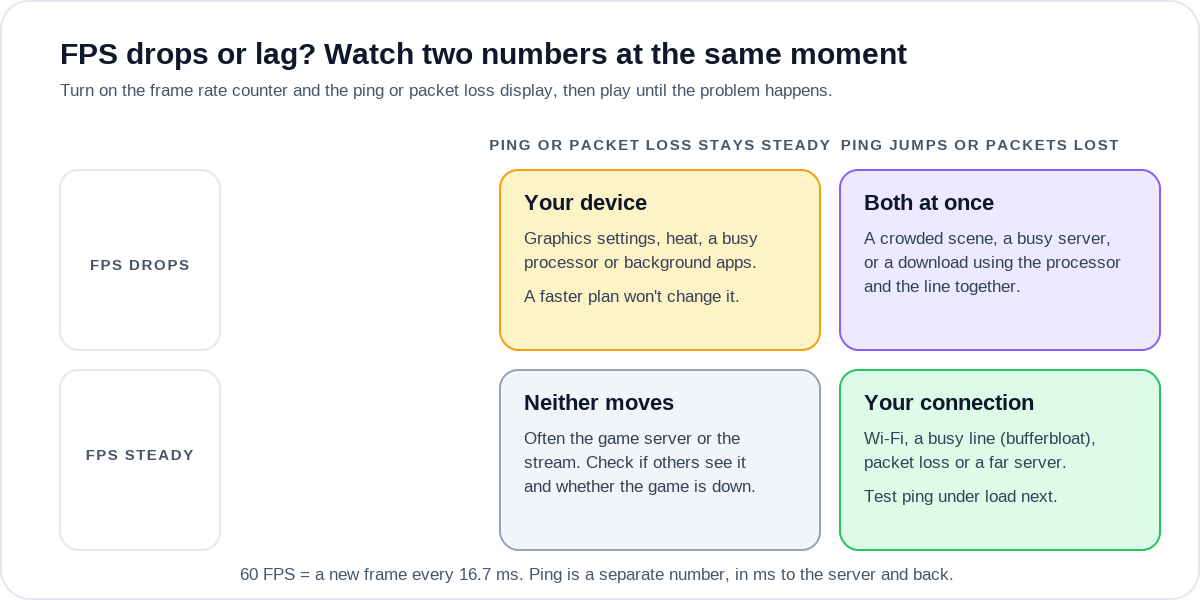
Put both numbers on screen and play until the problem happens. Most PC games can show the frame rate and the ping, and many can show packet loss too. Then look at which number moved at the moment the game went wrong.
- Turn on a frame rate counter. Use the game's own setting if it has one; otherwise see the next section for Steam, Windows and consoles.
- Turn on the game's network display, so you see ping and, if offered, packet loss. The game pages list the setting for popular games.
- Play for ten minutes, including the moments where it usually goes wrong: big fights, busy areas, the evening when everyone at home is online.
- When it happens, read both numbers. Write down what you saw, such as "FPS 140 to 45, ping 32 steady" or "FPS 140 steady, ping 32 to 190".
- Repeat once on a cable, or right next to the router, if the ping moved. Repeat once at lower graphics settings if the frame rate moved. The change that makes the problem go away confirms the cause.
| Frame rate | Ping or packet loss | What it points to | Where to start |
|---|---|---|---|
| Drops | Steady | The device: settings, heat, processor or background apps | Graphics settings and background apps |
| Steady | Jumps, or loss above 0% | The connection: Wi-Fi, a busy line, loss or a far server | One match on a cable, then a test under load |
| Drops | Jumps at the same time | A crowded scene or busy server, or a download using both the processor and the line | Pause downloads and updates, then test each side |
| Steady | Steady | Often the game server or the game itself | Ask other players and check whether the game is down |
Riot's own guide to Valorant makes the same split. Its in-game instability indicators show Low Client FPS for problems with your machine, Low Server FPS for problems on Riot's server, which affect every player, and High Average Ping or Network Problem for the connection. You turn them on under Settings, General, Other, Instability Indicators. Riot notes that brief indicators that go away quickly are generally safe to ignore; the ones that keep coming back are worth diagnosing.
How do I show FPS and ping in a game?
Use the game's own counter first, because it can show the frame rate and the network numbers side by side. If the game has none, the platform's overlay can show the frame rate, and the speed and lag test covers the network side in another window or on a phone next to you.
| Platform | Where it is | What it shows |
|---|---|---|
| Valorant | Settings > Video > Stats | Client FPS, Network RTT and packet loss, each as text or a graph |
| Steam games on PC | Steam > Settings > In Game, in-game FPS counter | Frame rate in a screen corner of your choice |
| Any Windows PC game | Press Windows key + G, open the Performance widget | Frame rate with CPU, GPU and memory use |
| PS5 | Settings > Saved Data and Game/App Settings > Game Presets | No counter; sets Performance Mode for games that offer it |
| Other games | Usually under Video, Graphics or Interface settings | Look for "FPS", "Performance stats" or "Net graph" |
On Windows the Game Bar's Performance widget got its frame rate counter in the October 2019 update, and the first time you use it Windows may ask you to allow it to read performance data. On consoles most games don't show a frame rate, so lean on the other signs in the table above: does the whole picture stutter, or only the other players?
How do I fix FPS drops?
If the frame rate is what drops, the fix is on the device. Your internet plan, router and Wi-Fi don't change how fast your graphics card draws. Work down this list and test after each change.
- Close what else is running. A browser with many tabs, a video in the background, a game launcher updating another game or a cloud backup all take processor time. Riot lists closing other applications as the first step for low client FPS.
- Lower the heaviest settings first. Shadows, resolution or render scale, ray tracing, and effects like bloom or volumetric fog cost the most. Riot's list for Valorant is Material, Texture, Detail and UI quality, then Improve Clarity, Experimental Sharpening, Bloom, Distortion and Cast Shadows.
- Check which part is the limit. Valorant's performance graphs, and the Windows Game Bar's CPU and GPU readings, show whether the processor or the graphics card is maxed out. If the graphics card is at full load, lower graphics settings help; if one processor core is maxed and the card isn't, lower settings won't help much.
- Plug in a laptop and let it cool. On battery, most laptops slow the processor to save power. A laptop on a bed or a soft surface can't pull in air and slows itself down when it gets hot, which shows as FPS that starts high and sinks after 10 to 20 minutes.
- Update the graphics driver and the game. Games often add fixes for stutter in patches, and old drivers can be the cause after a big game update.
- On a PS5, choose Performance Mode. Under Settings, Saved Data and Game/App Settings, Game Presets, Performance Mode asks games that support it to favour smoother motion over higher graphic quality. It only applies to games that offer the choice.
Not sure whether the computer is busy before you even start? Run the device check with the game closed. It times how late the browser's own timers fire and, where the browser supports it, reads the processor pressure; timers firing 50 ms or more late mean something else is keeping the machine busy. It also flags a low battery, which slows many devices down. Run it in a visible tab, because browsers slow down timers in hidden ones.
How do I fix lag when my FPS is fine?
If the frame rate holds and the ping or packet loss is what moves, the device is fine and the connection needs work. The order below starts with the common, free fixes.
- Test on a cable for one match. A Cable Matters Cat 6 cable or any undamaged Cat 5e or Cat 6 cable will do; a laptop without a port needs an adapter, such as an Anker USB-C to Ethernet adapter. If the lag stops, the cause is Wi-Fi, and Ethernet vs Wi-Fi for gaming covers the options when a cable can't reach. For a console far from the router, a wired link over the home's coax, such as a goCoax MoCA 2.5 adapter pair, is steadier than Wi-Fi.
- Test the line under load. Run the speed and lag test, which times ping while it downloads and uploads. If ping rises a lot while the line is busy, other traffic at home is queuing in front of your game (bufferbloat), and the bufferbloat fix has the Smart Queue settings that stop it.
- Look for packet loss. Riot says high quality wireless and most wired connections should have near-zero packet loss at all times. If your game shows loss, the packet loss guide traces where it starts.
- Check jitter. A ping that hops up and down feels worse than a steady higher one. What is jitter? explains the numbers, and the spike finder records a few minutes of ping to show whether the hitches follow a pattern.
- Pick the nearest server. A server in another region adds ping you can't fix at home. The game server ping test shows which cloud regions are closest to you.
Run the connection checks in one pass: ping under load, jitter, Wi-Fi and the device.
Test & OptimizeWhy do I get FPS drops and lag at the same time?
When both numbers move together, three causes are the usual suspects.
- A crowded scene. Big fights, crowded towns in online role-playing games and the start of a battle royale match ask more of your device (more players to draw) and of the server (more players to keep in step). Both numbers dip, and usually recover when the crowd thins.
- A download on the same device. A game update, a launcher patching another game or a cloud backup uses the processor and the disk, which lowers FPS, and fills the line, which raises ping. Pause it and both recover. The background downloads guide has the setting for each system.
- A struggling server. In Valorant, Low Server FPS means Riot's server is falling behind, and Riot says that one is on them. Other games show the same thing as everyone in the match lagging at once. Nothing at home fixes it; try another server or match.
Rarely, a network problem lowers the frame rate itself. Some games pause or slow down drawing while they wait for the server, so a burst of packet loss shows up as a hitch on the FPS graph. If FPS dips only at the exact moments the ping spikes, and never otherwise, treat it as a network problem.
Is it different for cloud gaming?
Yes. With GeForce NOW, Xbox Cloud Gaming or another streaming service, the game runs in a data center and your device only plays a video of it. A stutter or a burst of blocky frames there is almost always the stream: Wi-Fi, a busy line or the distance to the data center. Lowering graphics settings on your own device does little, because it isn't drawing the game. Cloud gaming lag covers the fixes and each service's own requirements.
What won't help?
- A faster internet plan for FPS drops. A game uses a few Mbps; the frame rate is made by your graphics card and processor. Is 100 Mbps good for gaming? shows how little a game needs.
- A new graphics card for lag. If the frame rate is steady and only the ping jumps, a faster card draws the same late information more often.
- Ping-reducer apps and gaming VPNs for either one, in most homes. They send your traffic over another route, which does nothing for your frame rate and nothing for Wi-Fi or a full line at home. Does a VPN lower ping? explains when a different route can help.
- "Game booster" apps that promise both. Closing background apps by hand does the same, and you can see what you closed.
- Changing DNS. It turns a name into an address before the match and carries none of your game traffic or drawing work. The DNS guide covers when it matters.
A worked example
A player on a gaming laptop says their shooter "lags" after about 15 minutes, every evening. They turn on the frame rate counter and the game's network graph. At the start of a session the counter reads about 140 FPS with ping steady at 28 ms. Twenty minutes in, the counter sinks to 60 to 70 FPS and the fans are loud, while ping still reads 28 to 31 ms. That is the device, not the internet: the laptop is getting hot on a soft desk mat and slowing itself down. Raising the back of the laptop for airflow, plugging in the charger and lowering shadows one step keeps it above 120 FPS.
A week later they still notice snap-backs around 9 pm. This time the counter stays at 140 FPS, but ping jumps from 28 to 150 ms for a few seconds at a time. The speed and lag test shows ping rising by more than 100 ms during the upload part, and a housemate's phone turns out to be backing up videos every evening. That is the connection, and it is Smart Queue on the router, not a new laptop, that fixes it.
When should I call my internet provider?
Only when the numbers point at the line. If the frame rate is steady, the problem stays on a cable with every other device off the network, it happens in more than one game, and other players are fine, the cause is likely between your modem and your provider. Bring the dated results the speed test keeps in this browser, and the times it happens. If the frame rate is what drops, your provider can't help, and a technician visit will only cost you time. The game lag guide has the full order of checks if you want to be sure first.
Questions
Is low FPS the same as lag?
No. Low FPS means your device draws fewer pictures each second, so the whole screen stutters. Lag means information between you and the game server is late or lost, so the picture stays smooth but players teleport and hits land late. They have different causes and different fixes.
Can bad internet cause FPS drops?
Not usually. The frame rate is made by your graphics card and processor, and a game needs only a few Mbps. A few games hitch briefly while they wait for the server, and cloud gaming streams drop frames when the connection struggles. If FPS dips only when ping spikes, treat it as a network problem.
Why is my FPS fine but my game still lags?
Because the problem is on the connection, not the device. The usual causes are Wi-Fi, a home line that is full because someone else is downloading or uploading, packet loss, or a far-away server. Play one match on a cable, then run the speed and lag test to see whether ping rises under load.
How do I tell if my game is lagging or my PC is slow?
Show the frame rate and the ping on screen at the same time and watch them when the problem happens. If FPS drops while ping stays steady, the PC is the limit. If ping jumps or packets are lost while FPS holds, it is the connection.
Will a faster internet plan increase my FPS?
No. A faster plan doesn't change how quickly your device draws frames. It can help when your line is full, but that fixes lag, not frame rate, and Smart Queue on the router usually fixes that kind of lag without a plan change.
Does Wi-Fi lower FPS?
Wi-Fi doesn't lower your frame rate. It can add jitter and packet loss, which cause lag and rubber banding while the FPS counter stays high. Rubber banding in games covers the Wi-Fi fixes.
Why does my FPS drop after playing for a while?
That pattern usually points at heat. A laptop or a dusty PC that gets hot slows its processor or graphics card to protect itself, and the frame rate sinks after 10 to 20 minutes. Improve the airflow, keep a laptop plugged in and off soft surfaces, and check that the fans aren't blocked.
Is 60 FPS good enough for online games?
60 FPS is smooth for most games, and it means a new frame every 16.7 ms. Fast shooters feel more responsive at higher frame rates if your screen can show them. A steady 60 FPS feels better than a frame rate that jumps between 40 and 140.